Printing Options:
Computer Lab Web Browser Email PC or Laptop Mobile
Apple users: Please note your device may default to Color print, which is a higher cost per page. When you print your job from a Student Printing kiosk, make sure to check your settings and change to Black & White, if Color is not desired.
In a Computer Lab
- Visit a campus computer lab.
- Log into the computer using your PennWest credentials.
- Open your document.
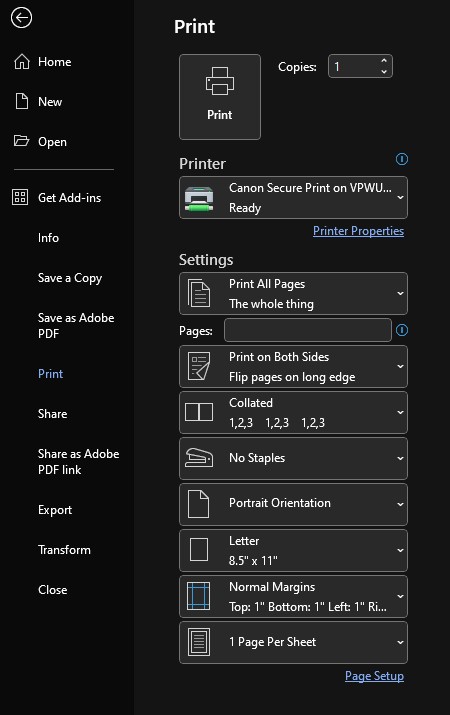
- Select Print.
- Under “Printer” choose “Student Printing” if it is not already selected.
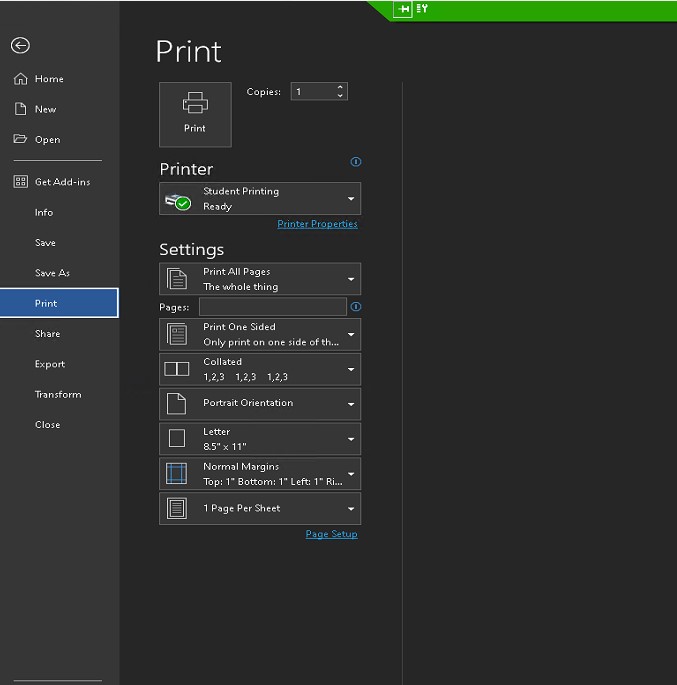
- Review your document’s formatting and paper size prior to printing.
- Click “Print” to send your print job to print queue.
Note: Your document will not print until you manually release it from a student printing kiosk. - Visit any student printing kiosk on any PennWest campus.
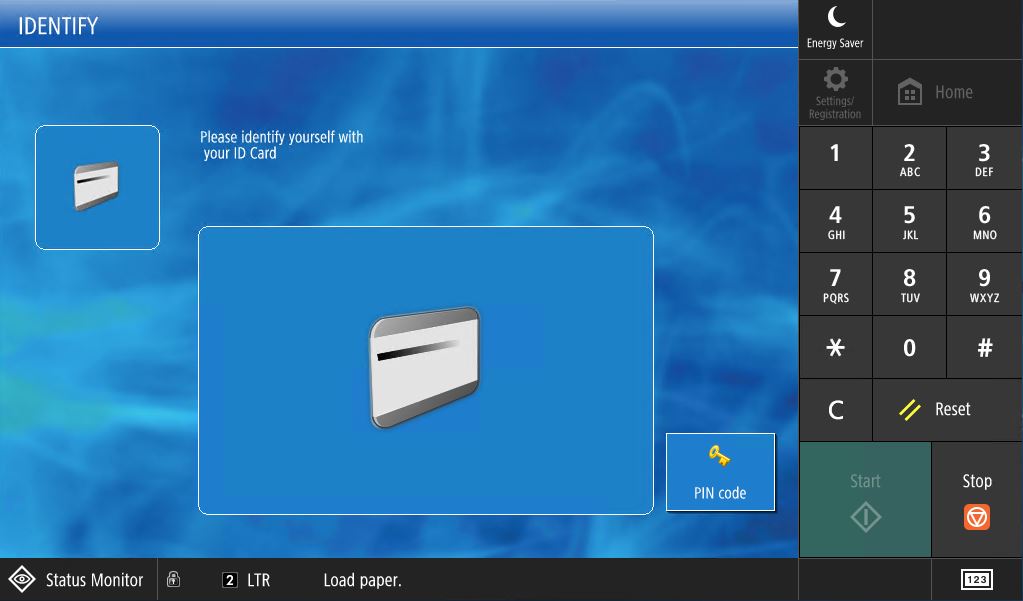
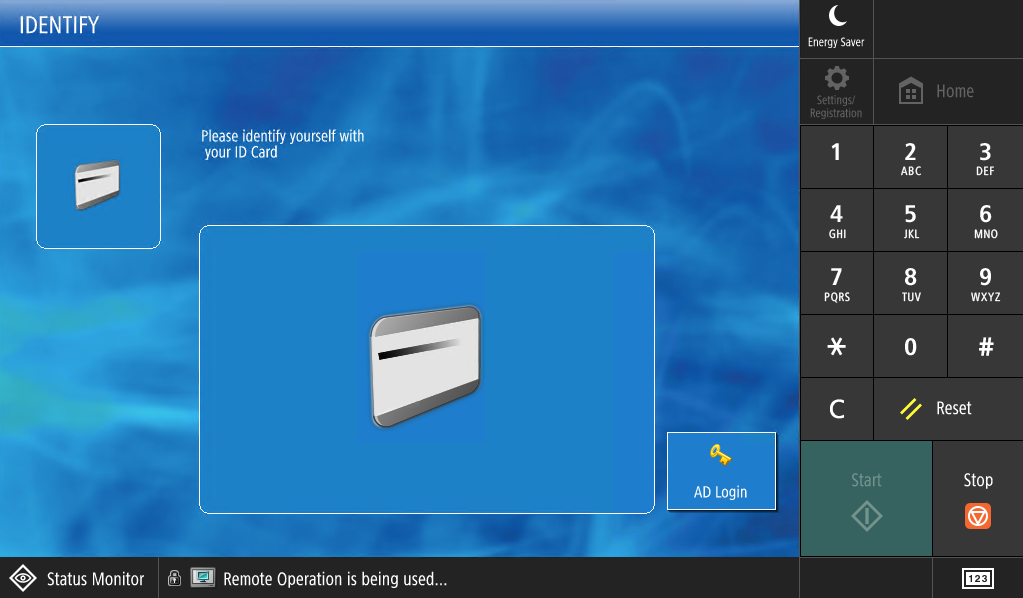
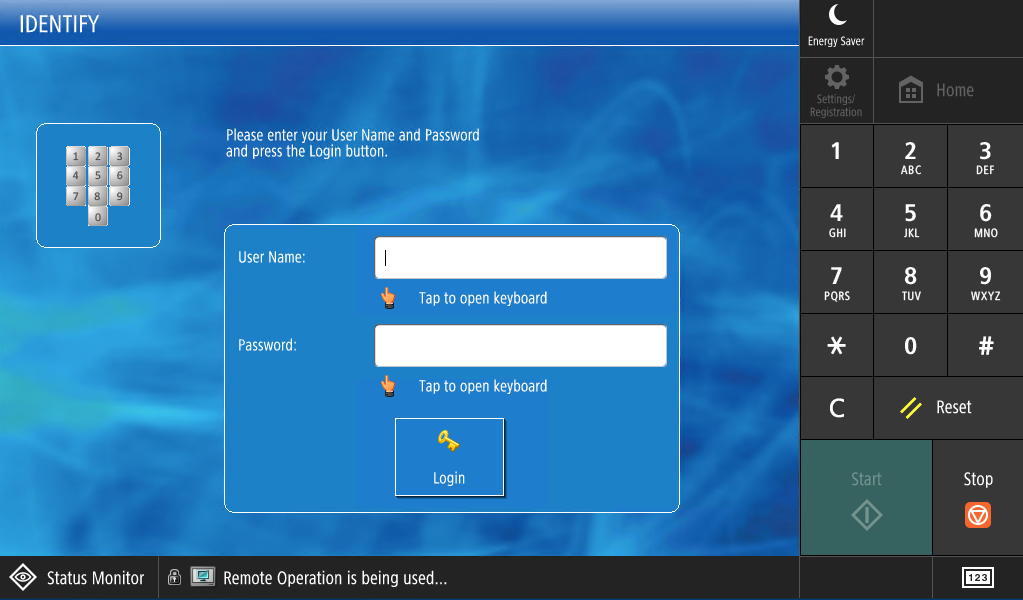
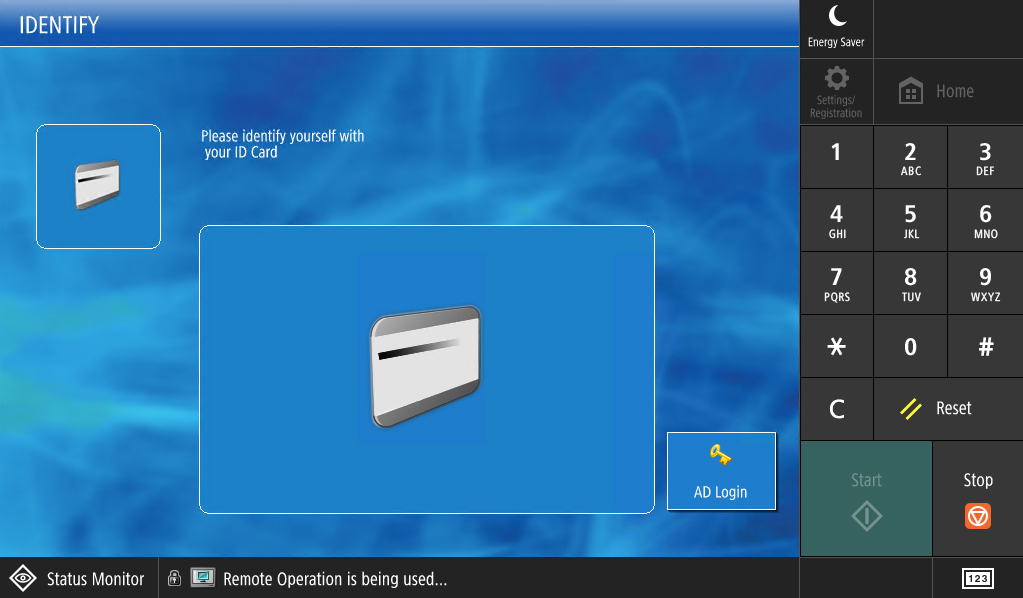
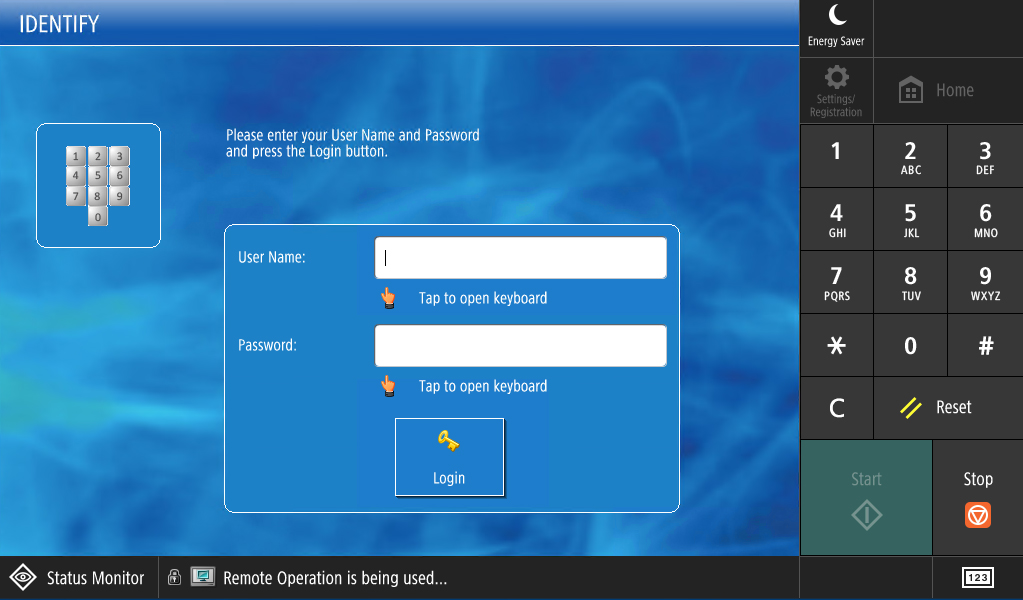
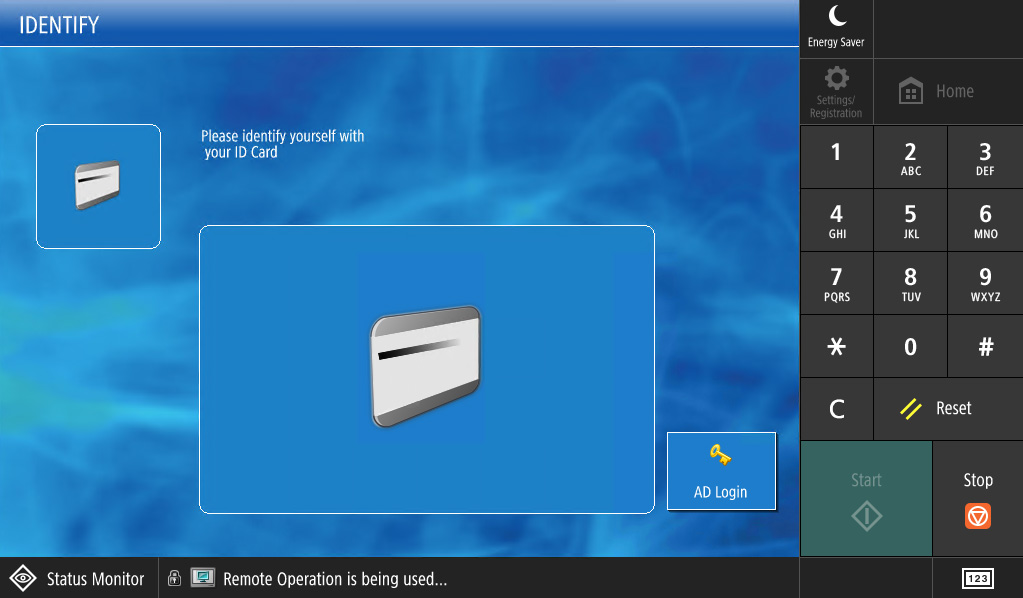
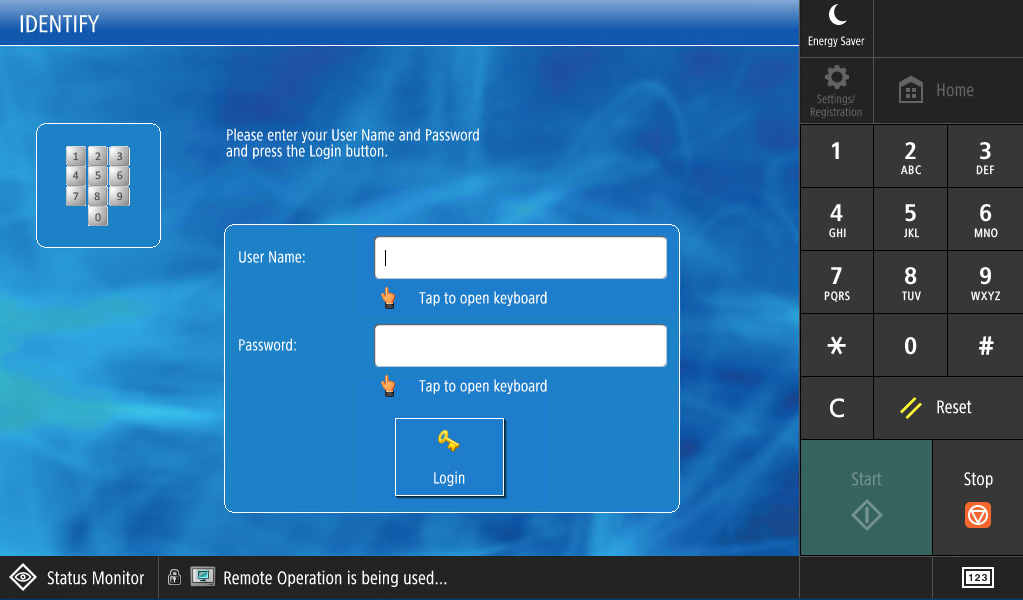
- Swipe your PennWest ID Card or, if you do not have your card, select the PIN option
and enter your PID.
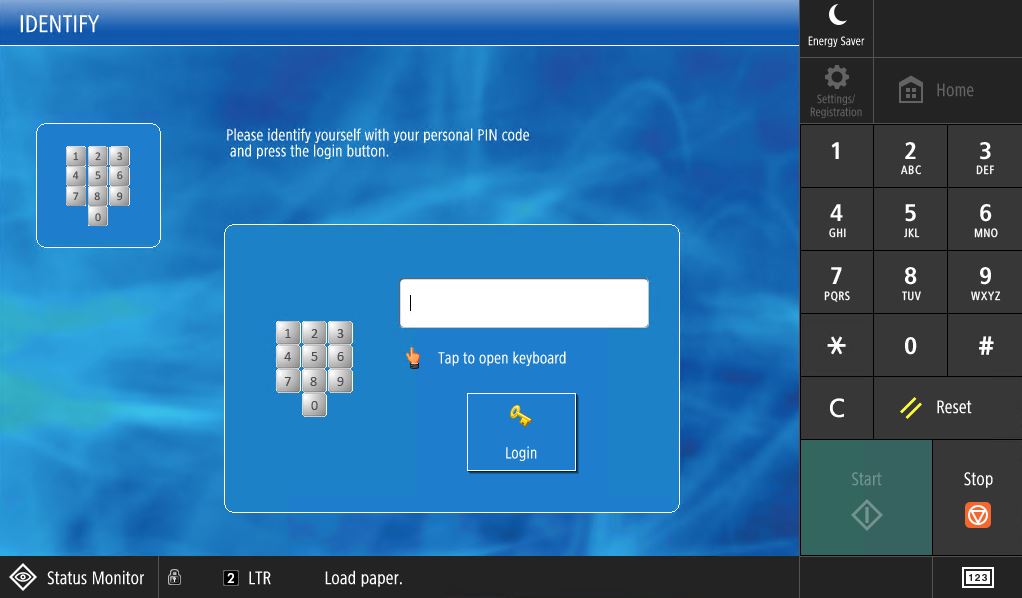
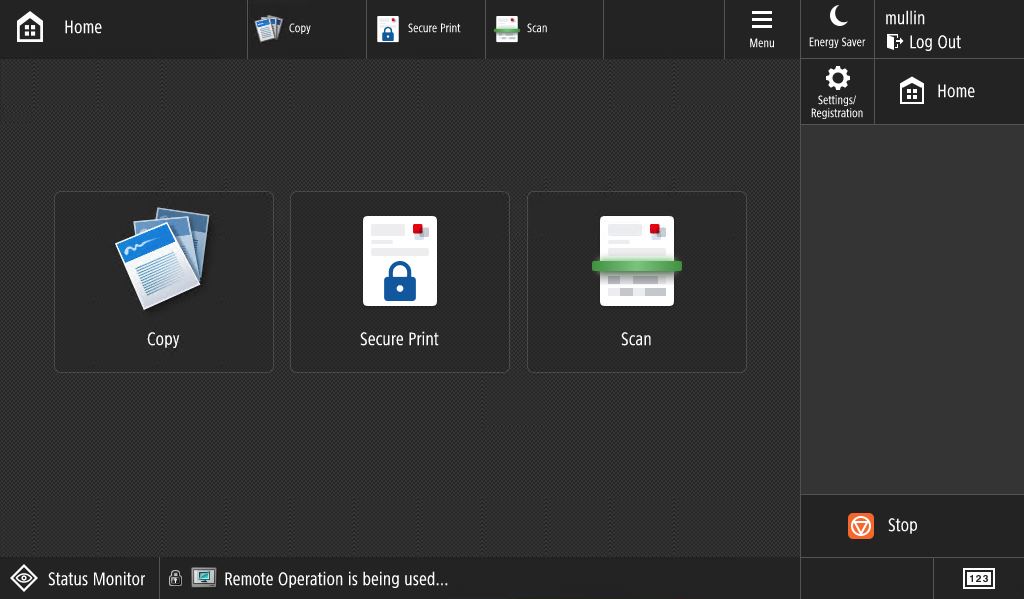
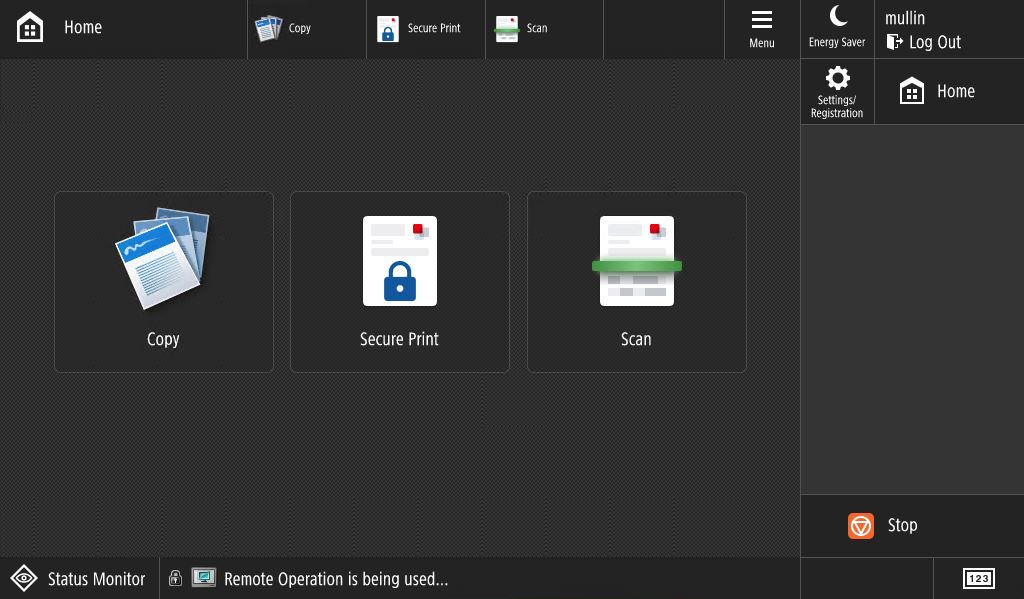
To log in with your PID you will enter only the number portion, not the letter P. - From the “Home” screen select “Secure Print” to be taken to your Secure Queue
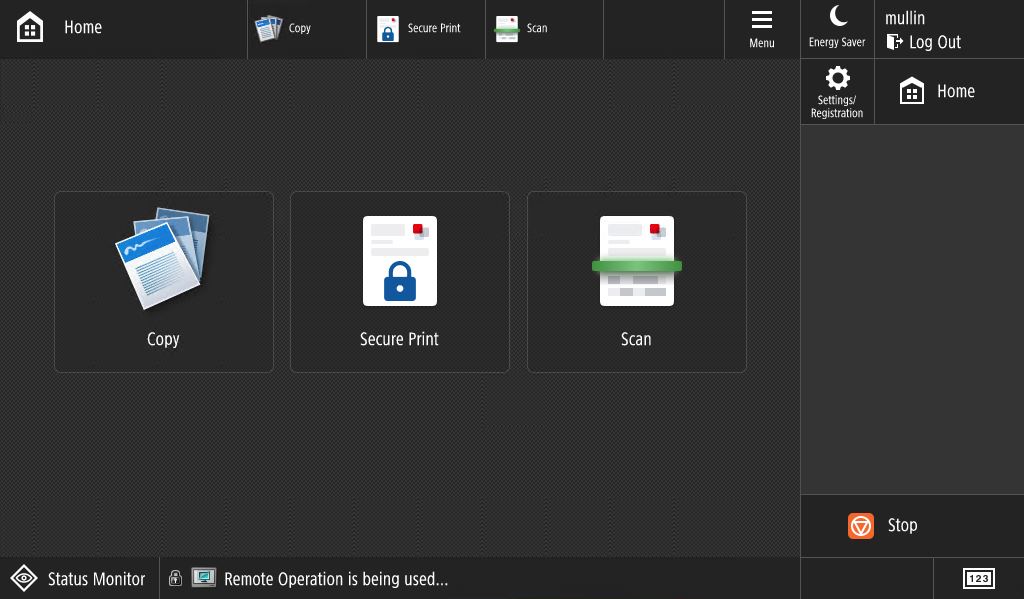
- In the Secure Queue you have a variety of options to choose from:
- “Print + Delete” prints the selected document(s) and then deletes them from the Queue
- “Print All” prints all documents listed in the Queue
- “Delete” deletes the selected document(s)
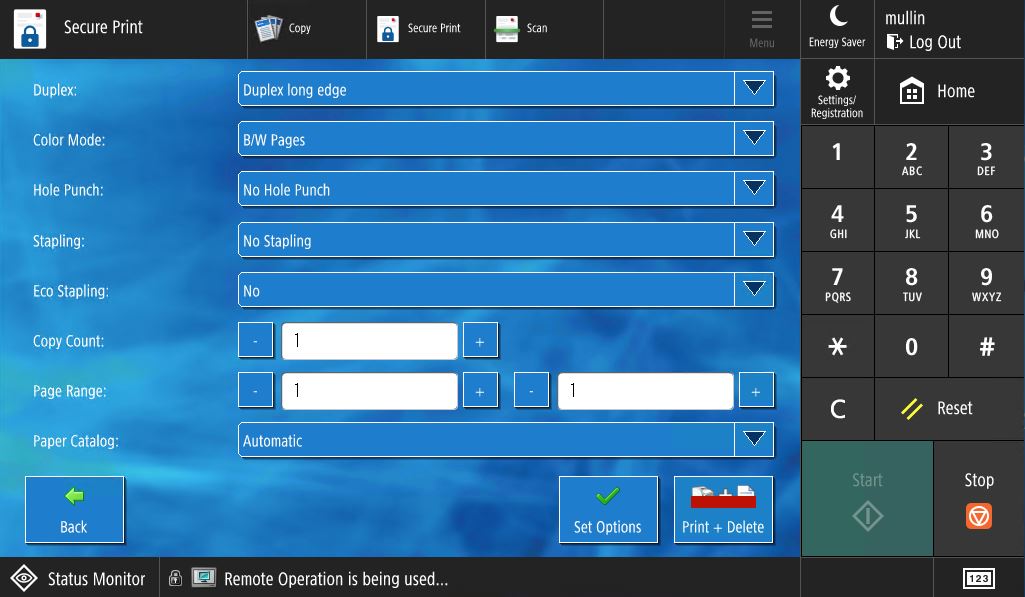
- “Options” adjusts settings like Duplex, Black & White or Color (B&W by default), and more.
- Note: Select the document(s) you want to change settings for before choosing “Options”
- After making your adjustments, select “Set Options”
- “Refresh” to refresh the document listing if you are already logged in to the kiosk and a new document is not appearing
- “Select All” selects all listed document(s) in the Queue
- Select the document(s) you want to print and select “Print + Delete” or “Print All”
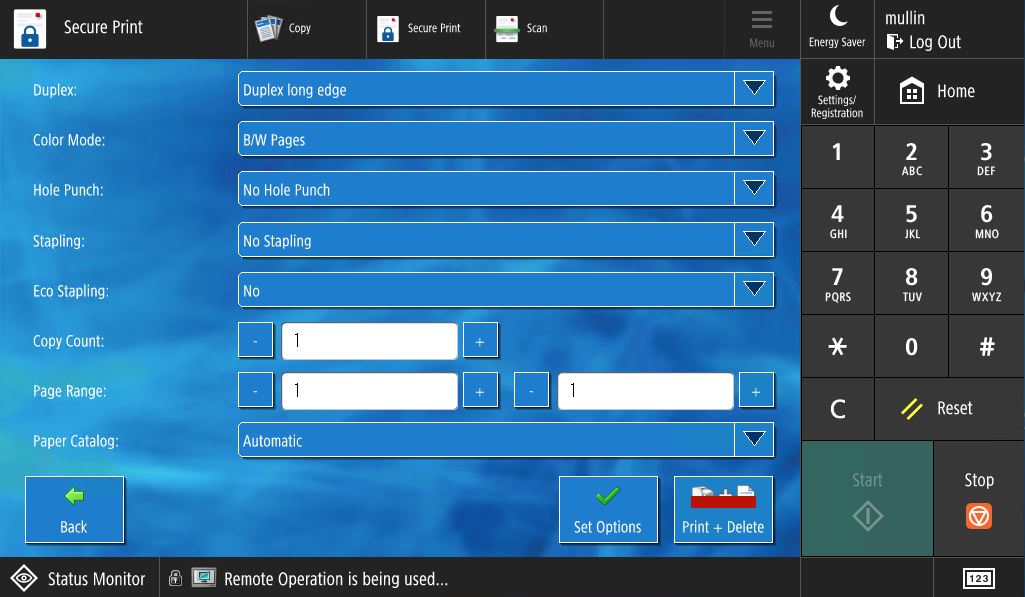
- Set your Duplex, Color Mode, and other options.
Note: Hole Punch, Stapling, and Eco Stapling options are not available at this time. - Select “Print + Delete”
- Collect your print job.
- Log out of your account when finished.
Note: Your account will automatically log out after 2 minutes of inactivity.
From a Web Browser
If you prefer to print your document(s) from a web browser, without installing a mobile app or the Smart Client driver on a personal computer, please follow the directions below.
- Go to the PennWest uniFLOW online website.
- Select “Continue with PennWest UniFlow Login”.
- Follow your PennWest Multi-factor Authentication (MFA) steps.
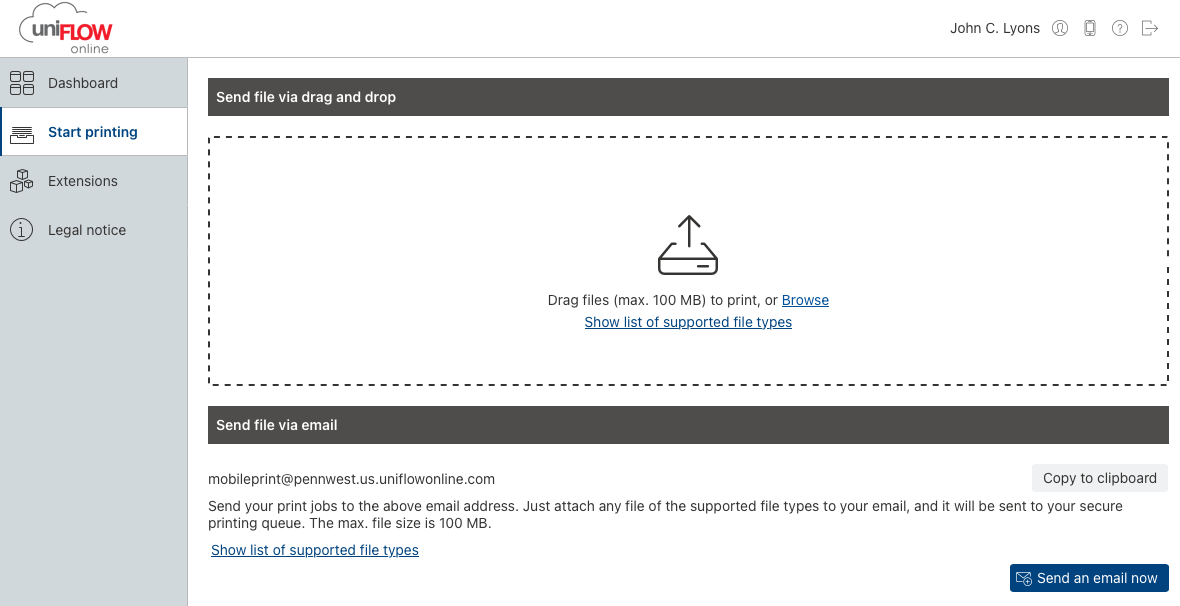
- Either drag and drop your document(s) into the “Send via drag and drop” section of the webpage or select “Browse” to navigate to your document(s).
- Visit any student printing kiosk on any PennWest campus.
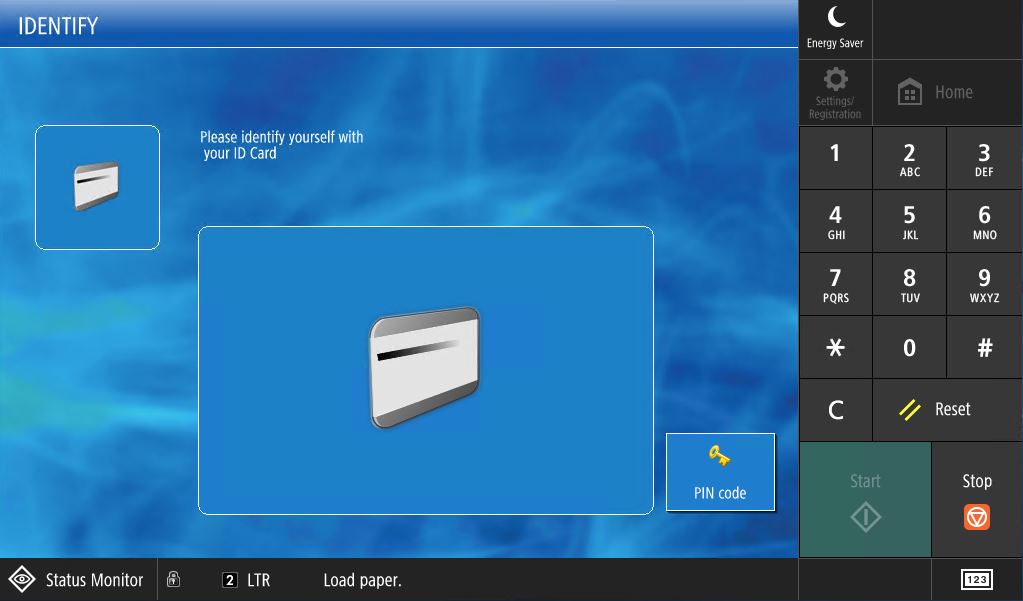
- Swipe your PennWest ID Card or, if you do not have your card, select the PIN option
and enter your PID.
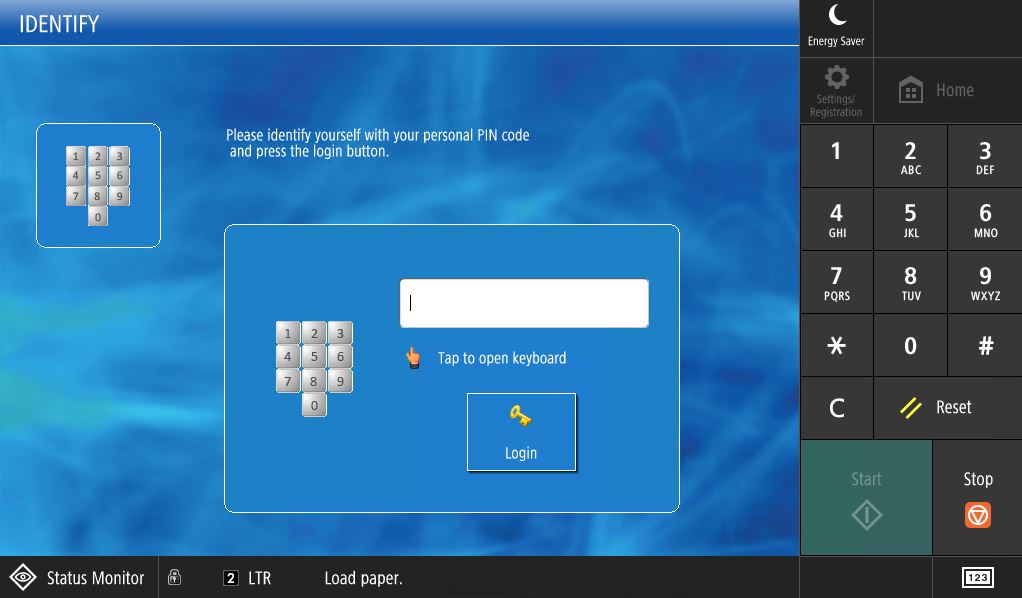
- To log in with your PID you will enter only the number portion, not the letter P.
- From the “Home” screen select “Secure Print” to be taken to your Secure Queue
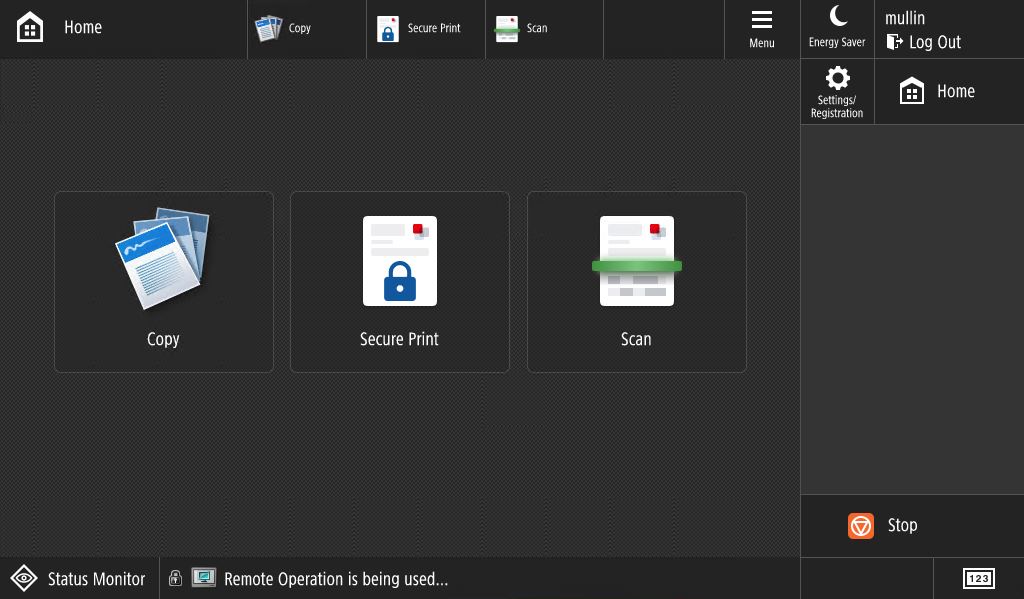
- In the Secure Queue you have a variety of options to choose from:
- “Print + Delete” prints the selected document(s) and then deletes them from the Queue
- “Print All” prints all documents listed in the Queue
- “Delete” deletes the selected document(s)
- “Options” adjusts settings like Duplex, Black & White or Color (B&W by default), and more.
- Note: Select the document(s) you want to change settings for before choosing “Options”
- After making your adjustments, select “Set Options”
- “Refresh” to refresh the document listing if you are already logged in to the kiosk and a new document is not appearing
- “Select All” selects all listed document(s) in the Queue
- Select the document(s) you want to print and select “Print + Delete” or “Print All”
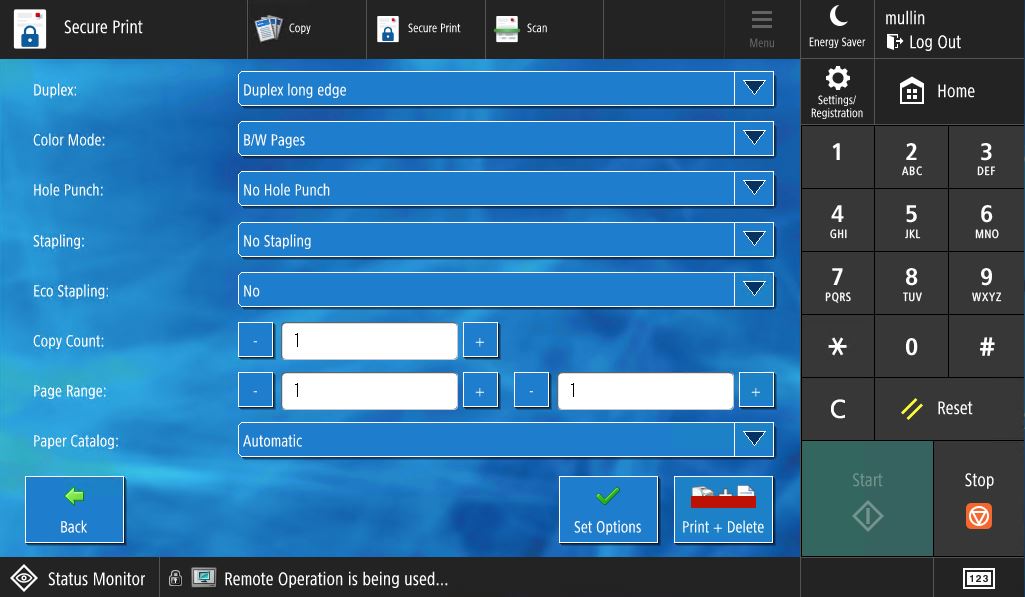
- Set your Duplex, Color Mode, and other options.
Note: Hole Punch, Stapling, and Eco Stapling options are not available at this time. - Select “Print + Delete”
- Collect your print job.
- Log out of your account when finished.
Note: Your account will automatically log out after 2 minutes of inactivity.
From an Email Message
Send your print jobs to mobileprint@pennwest.us.uniflowonline.com from your PennWest email address. Just attach any file of the supported file types to your email, and it will be sent to your secure printing queue. The max. file size is 100 MB. See below for list of supporting file types.
Note: This feature will not work with personal email addresses. You must send document(s) from your PennWest email account.
- Visit any student printing kiosk on any PennWest campus.
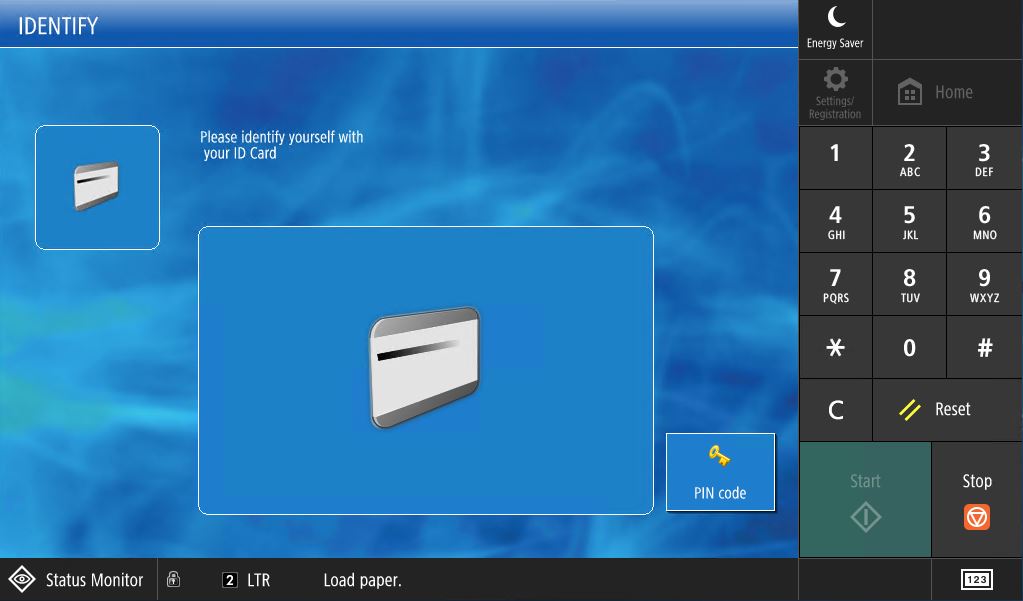
- Swipe your PennWest ID Card or, if you do not have your card, select the PIN option
and enter your PID.
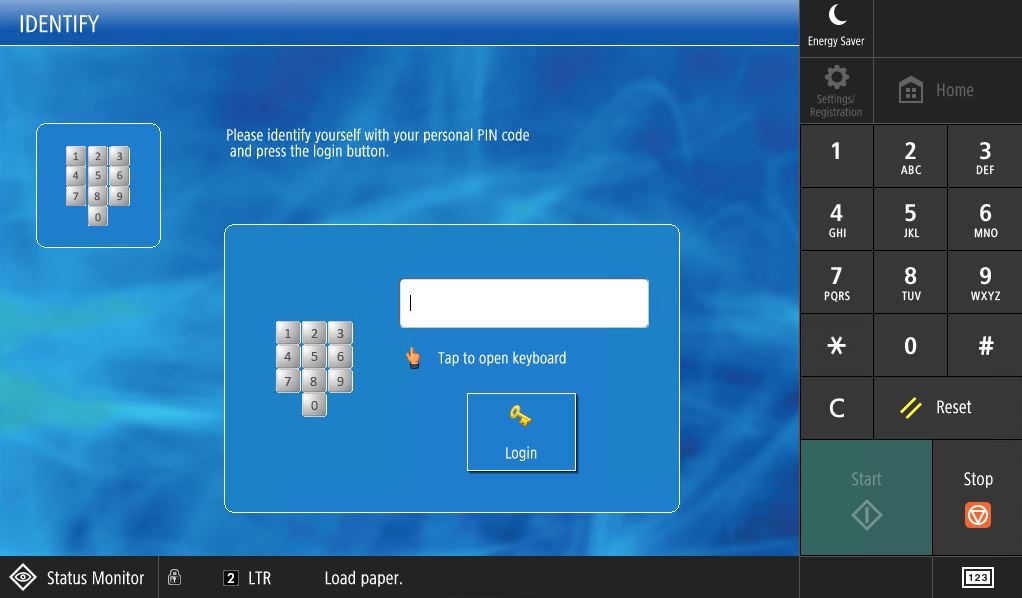
- To log in with your PID you will enter only the number portion, not the letter P.
- From the “Home” screen select “Secure Print” to be taken to your Secure Queue
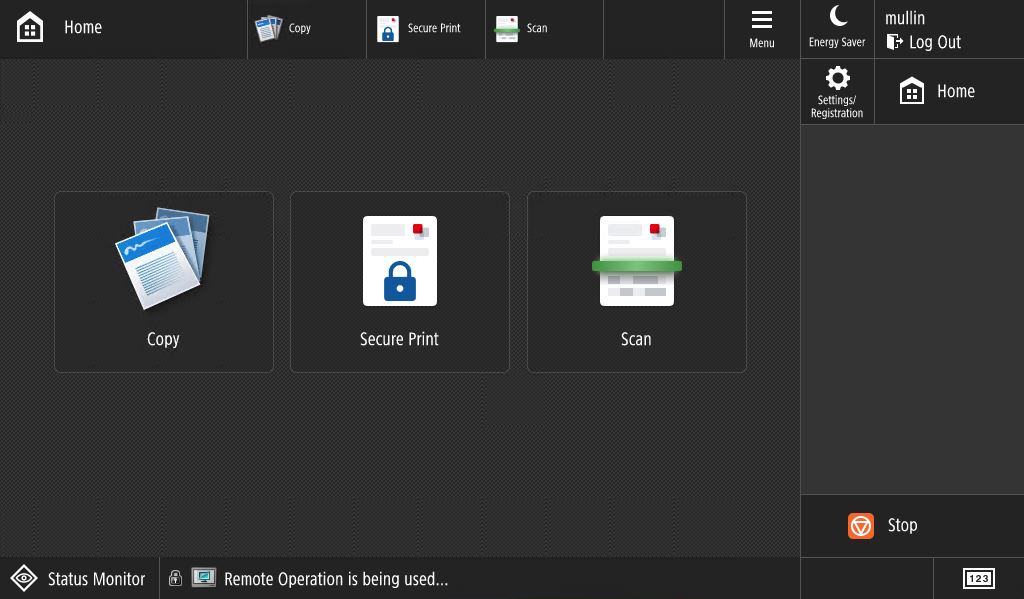
- In the Secure Queue you have a variety of options to choose from:
- “Print + Delete” prints the selected document(s) and then deletes them from the Queue
- “Print All” prints all documents listed in the Queue
- “Delete” deletes the selected document(s)
- “Options” adjusts settings like Duplex, Black & White or Color (B&W by default), and more.
- Note: Select the document(s) you want to change settings for before choosing “Options”
- After making your adjustments, select “Set Options”
- “Refresh” to refresh the document listing if you are already logged in to the kiosk and a new document is not appearing
- “Select All” selects all listed document(s) in the Queue
- Select the document(s) you want to print and select “Print + Delete” or “Print All”
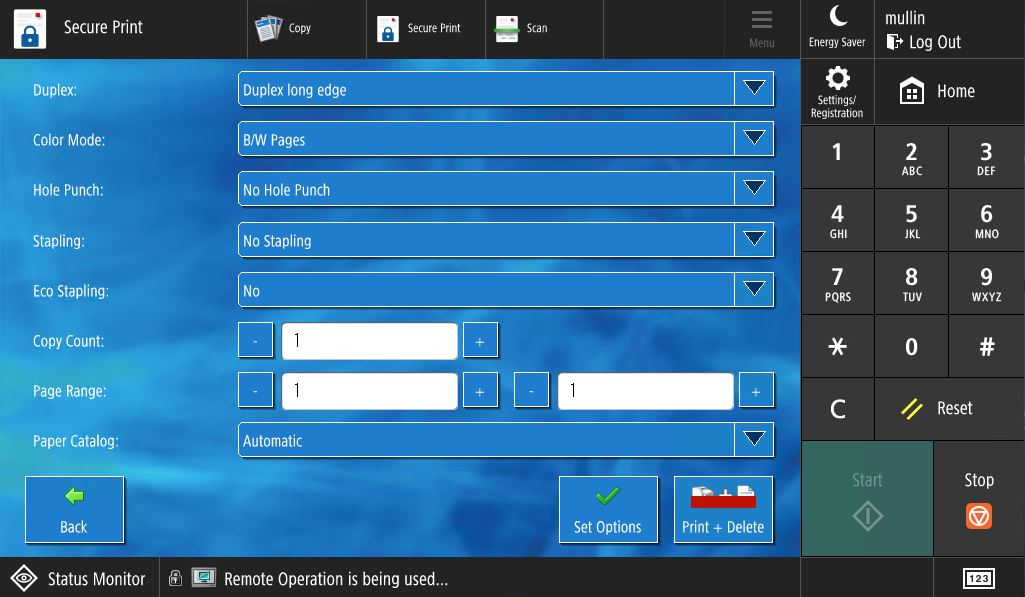
- Set your Duplex, Color Mode, and other options Note: Hole Punch, Stapling, and Eco Stapling options are not available at this time.
- Select “Print + Delete”
- Collect your print job.
- Log out of your account when finished. Note: Your account will automatically log out after 2 minutes of inactivity.
Supported File Types
Email Body
- uniFLOW Online supports the email-body format Plain text only for Email print.
Attachments
uniFLOW Online supports the following file types as email attachments for Email print:
Note: Under Print/Scan > Email print, the parameter Office file conversion must be set to Support all printable formats to support file types other than PDF. Email print jobs with unsupported file types are deleted. Therefore, they do not appear in the print job list.
- Portable Document Format (.pdf)
- Web Pages (.htm, .html)
- Text File (.txt, .text, .csv)
- XML Files (.xml)
- Rich Text Format (.rtf)
- Microsoft® Excel Files (.xlsx, .xlsm, .xlsb, .xltx, .xltm, .xls, .xlt, .xlm, .xlw)
- Microsoft® Word Documents (.docx, .doc, .docm, .dotx, .dotm, .dot)
- Microsoft® PowerPoint Presentations (.pptx, .ppt, .pptm, .ppsx, .pps, .ppsm, .potx, .potm)
- WordPerfect® Documents (.wpd)
- Bitmap Image File (.bmp)
- CompuServe Graphics Interchange Format (.gif)
- Icon Files (.ico)
- JPEG 2000 JP2 File Format Syntax (.jp2)
- Joint Photographic Experts Group Image Format (.jpeg, .jpg)
- Portable Network Graphics (.png)
- Tagged Image File Format (.tiff, .tif)
From a PC or Laptop
- Go to the PennWest uniFLOW online website.
- Select “Continue with PennWest UniFlow Login”.
- Follow your PennWest Multi-factor Authentication (MFA) steps.
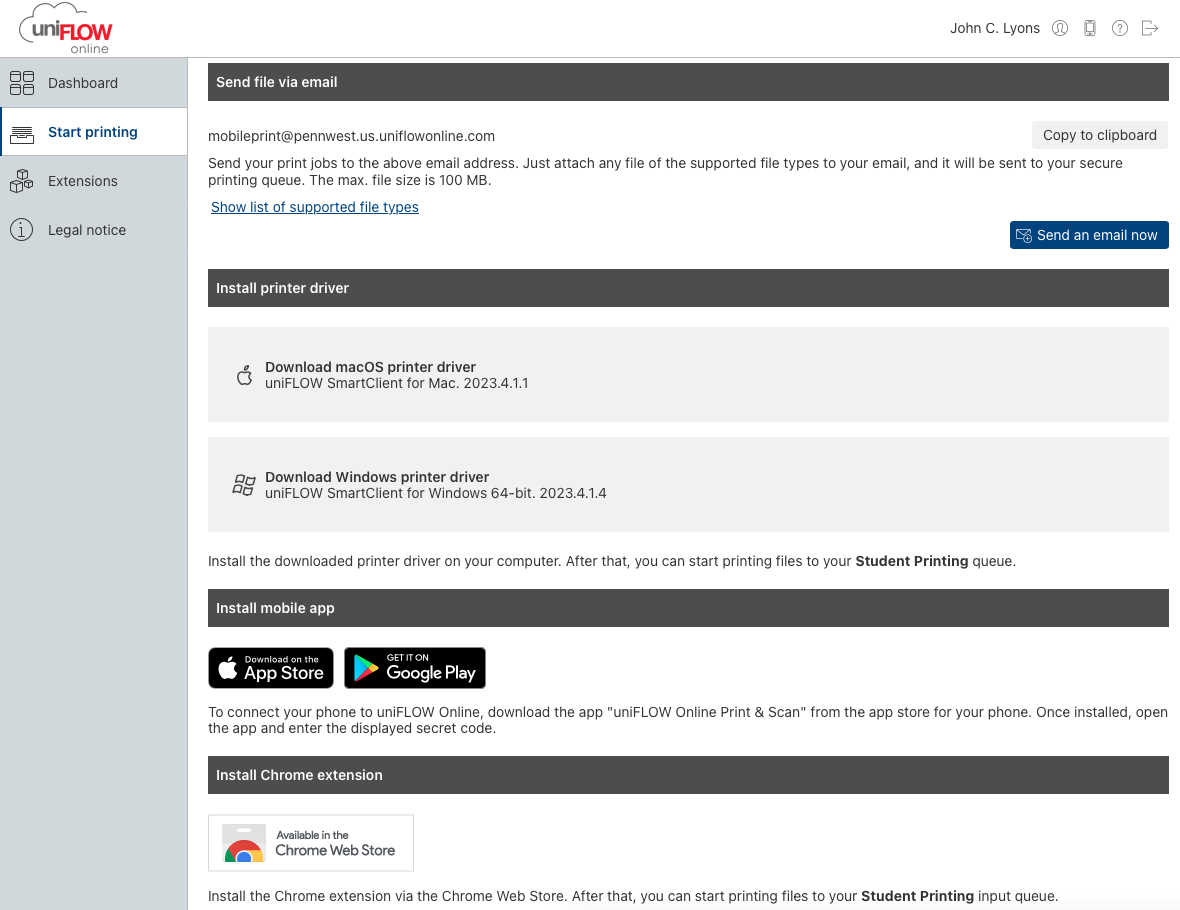
- Download the correct print driver
- Install the downloaded printer driver on your computer.
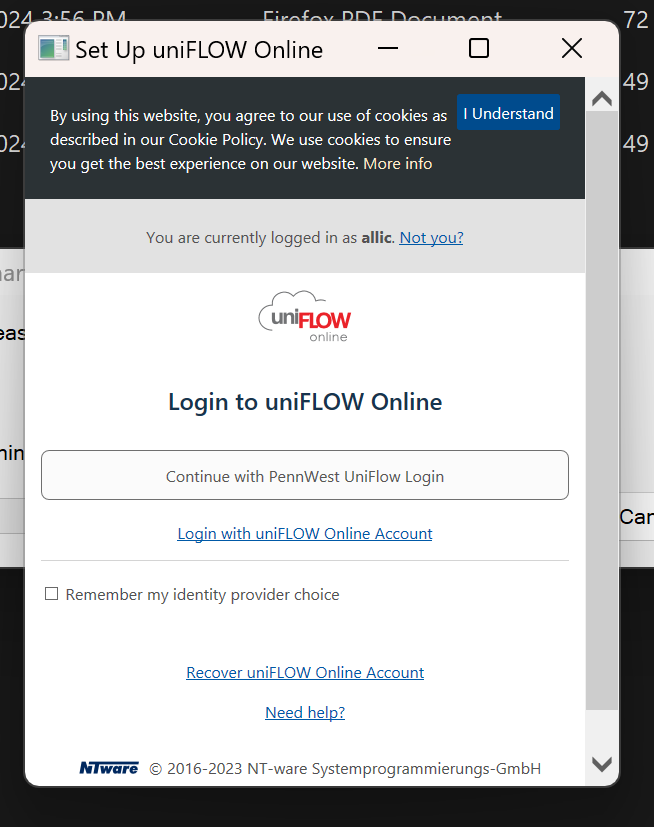
- When the installation begins you will be asked to allow the installation and to Login
to uniFLOW Online. Click “Continue with PennWest uniFlow Login”.
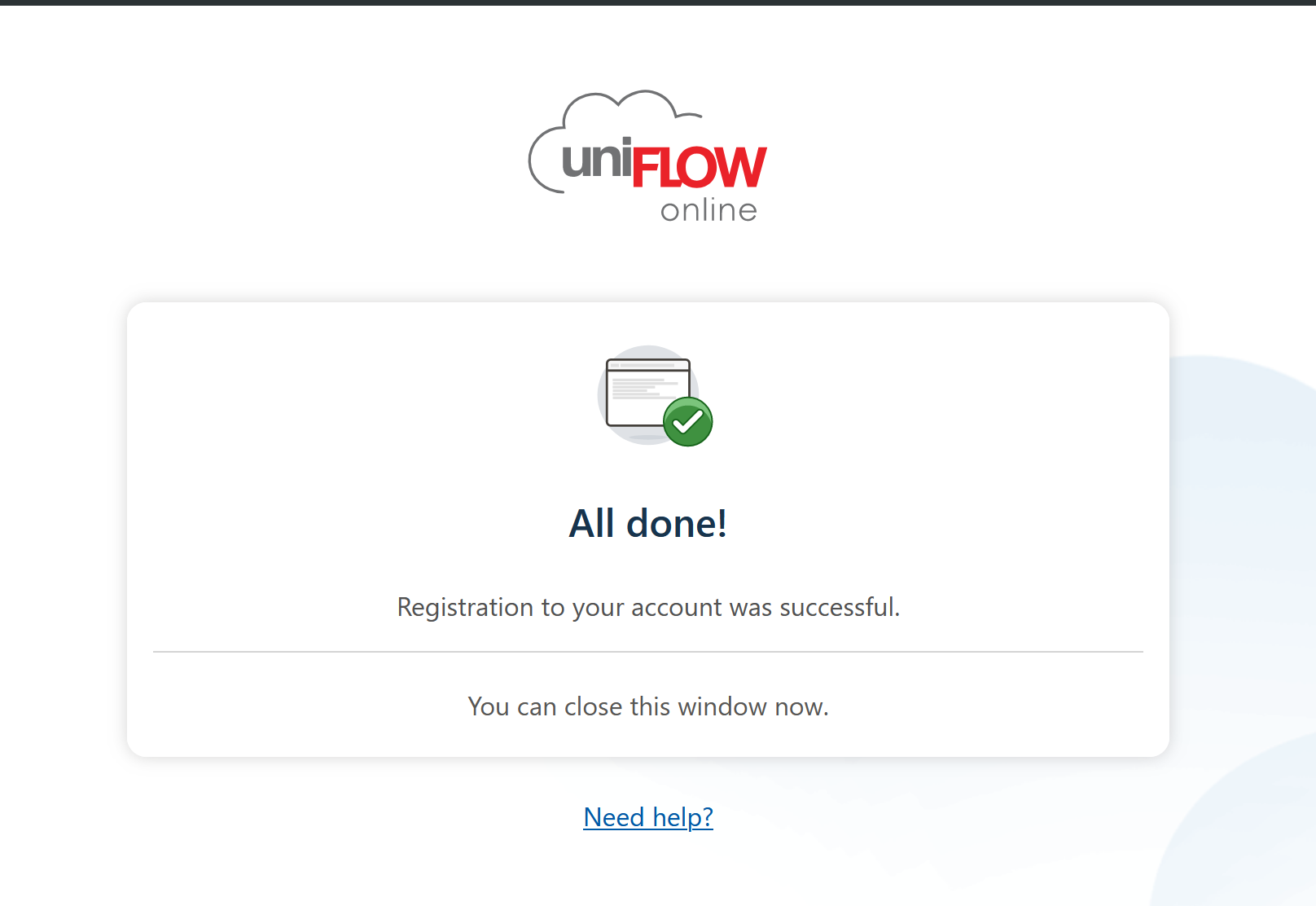
- Once the installation finishes you will receive an “All done!” message.
- Open your document.
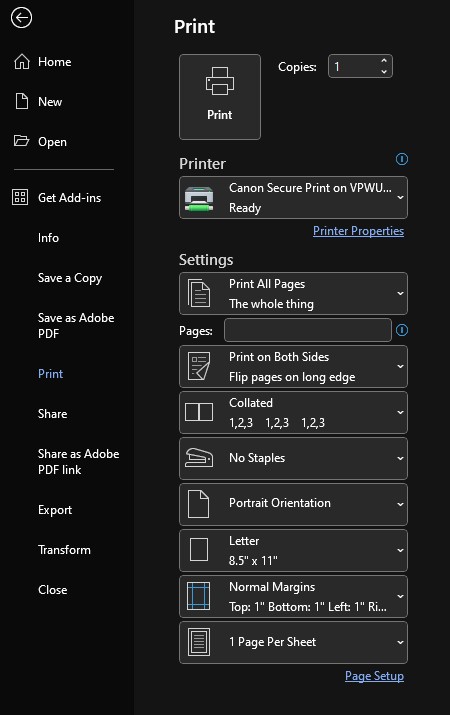
- Select Print.
- Under “Printer” choose “Student Printing” if it is not already selected.
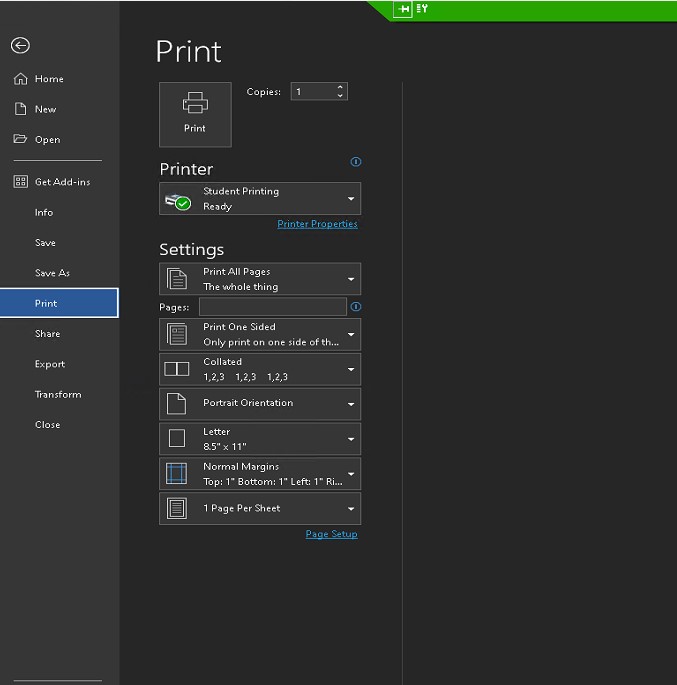
- Review your document’s formatting and paper size prior to printing.
- Click “Print” to send your print job to print queue. Note: Your document will not print until you manually release it from a student printing kiosk.
- Visit any student printing kiosk on any PennWest campus.
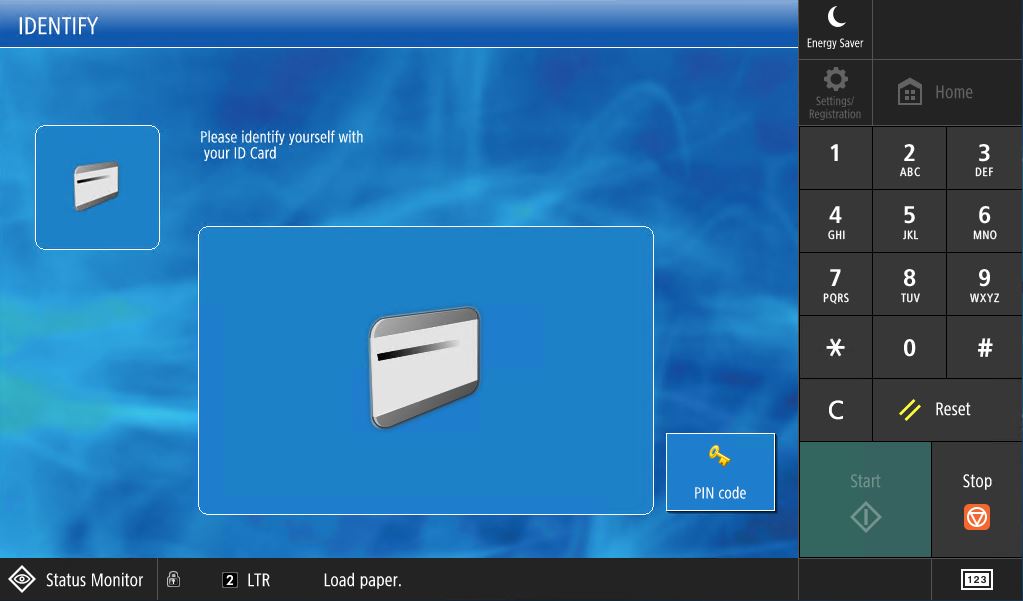
- Swipe your PennWest ID Card or, if you do not have your card, select the PIN option
and enter your PID.
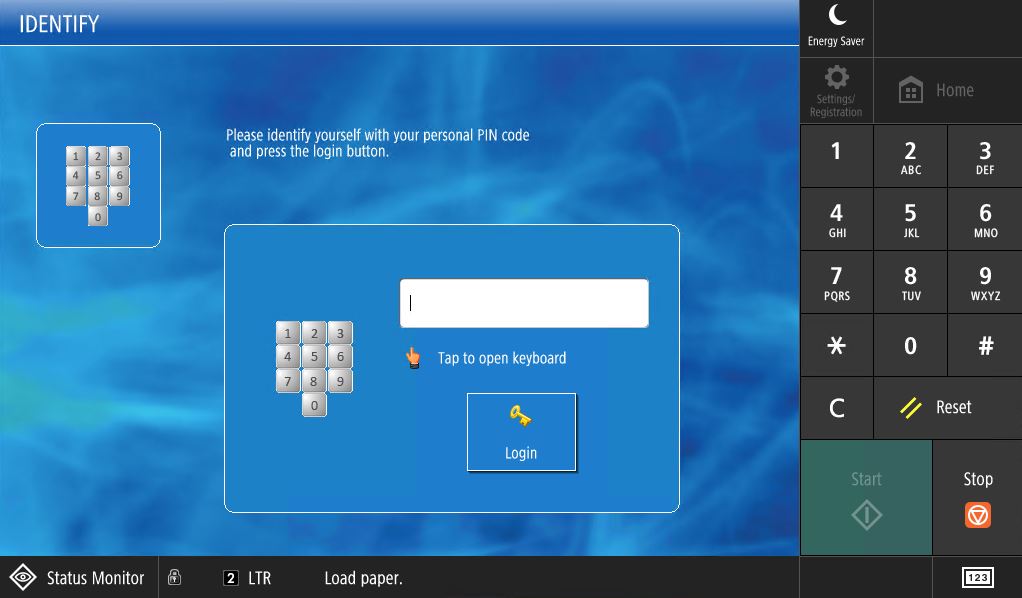
- To log in with your PID you will enter only the number portion, not the letter P.
- From the “Home” screen select “Secure Print” to be taken to your Secure Queue
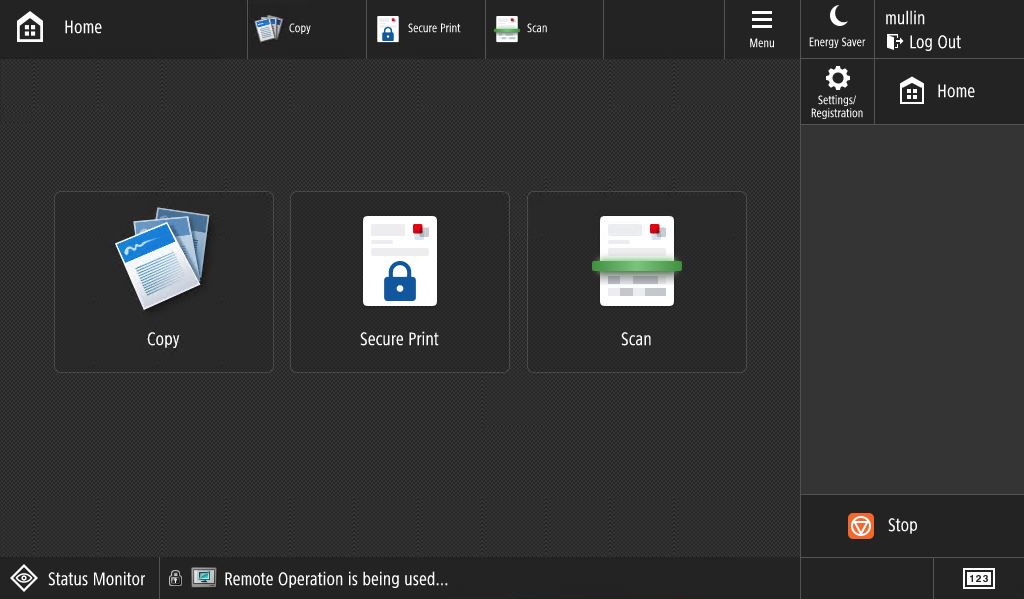
- In the Secure Queue you have a variety of options to choose from:
- “Print + Delete” prints the selected document(s) and then deletes them from the Queue
- “Print All” prints all documents listed in the Queue
- “Delete” deletes the selected document(s)
- “Options” adjusts settings like Duplex, Black & White or Color (B&W by default), and more. Note: Select the document(s) you want to change settings for before choosing “Options”
- After making your adjustments, select “Set Options”
- “Refresh” to refresh the document listing if you are already logged in to the kiosk and a new document is not appearing
- “Select All” selects all listed document(s) in the Queue
- Select the document(s) you want to print and select “Print + Delete” or “Print All”
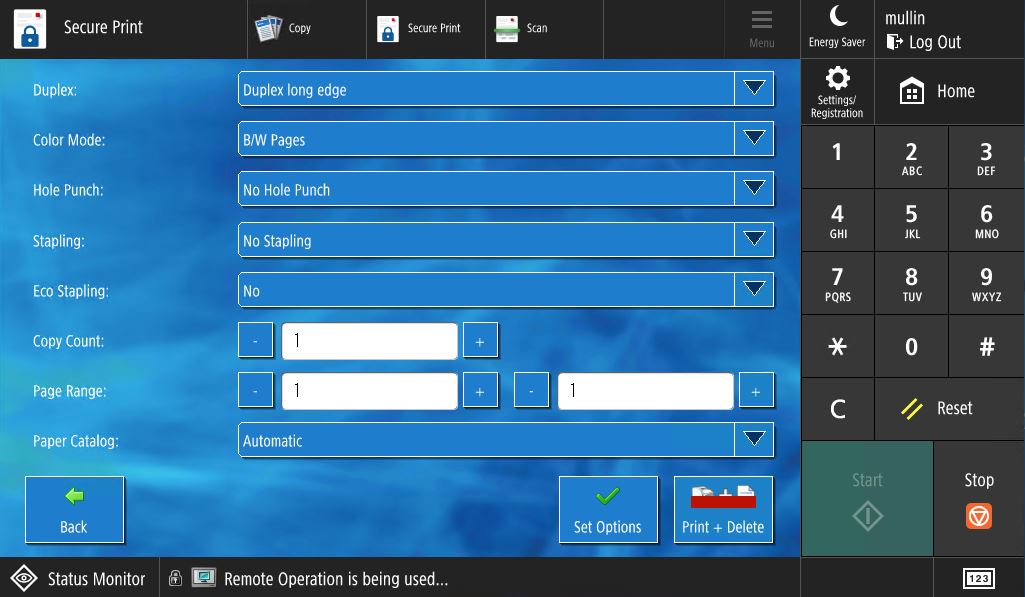
- Set your Duplex, Color Mode, and other options. Note: Hole Punch, Stapling, and Eco Stapling options are not available at this time.
- Select “Print + Delete”
- Collect your print job.
- Log out of your account when finished. Note: Your account will automatically log out after 2 minutes of inactivity.
From a Mobile Device
The Print app can be used to print from Apple and Android smartphones and tablets.
To connect your phone to uniFLOW Online:
- Download the app "uniFLOW Online Print & Scan" from the app store for your phone.
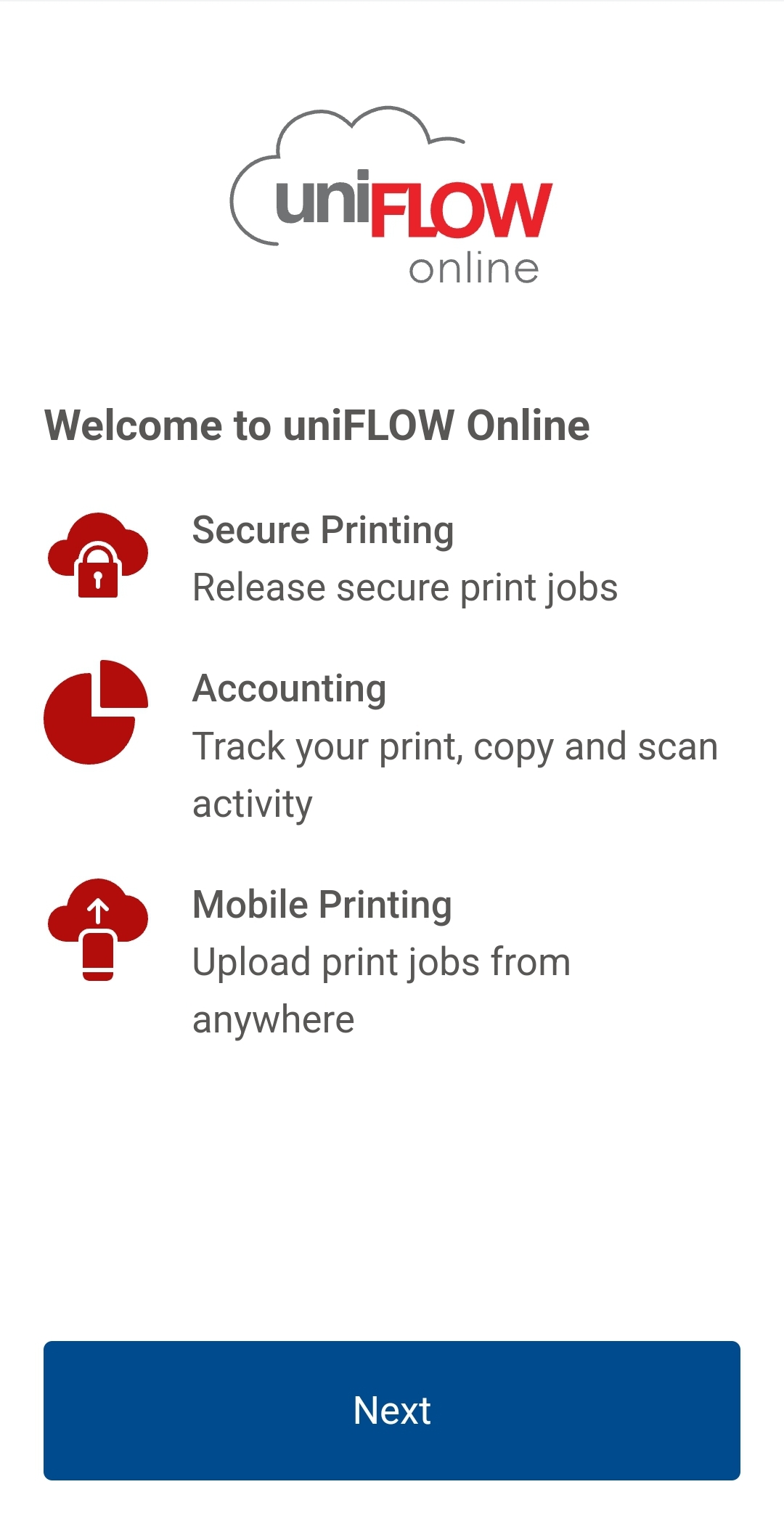
- Once installed, open the app and select “Next”.
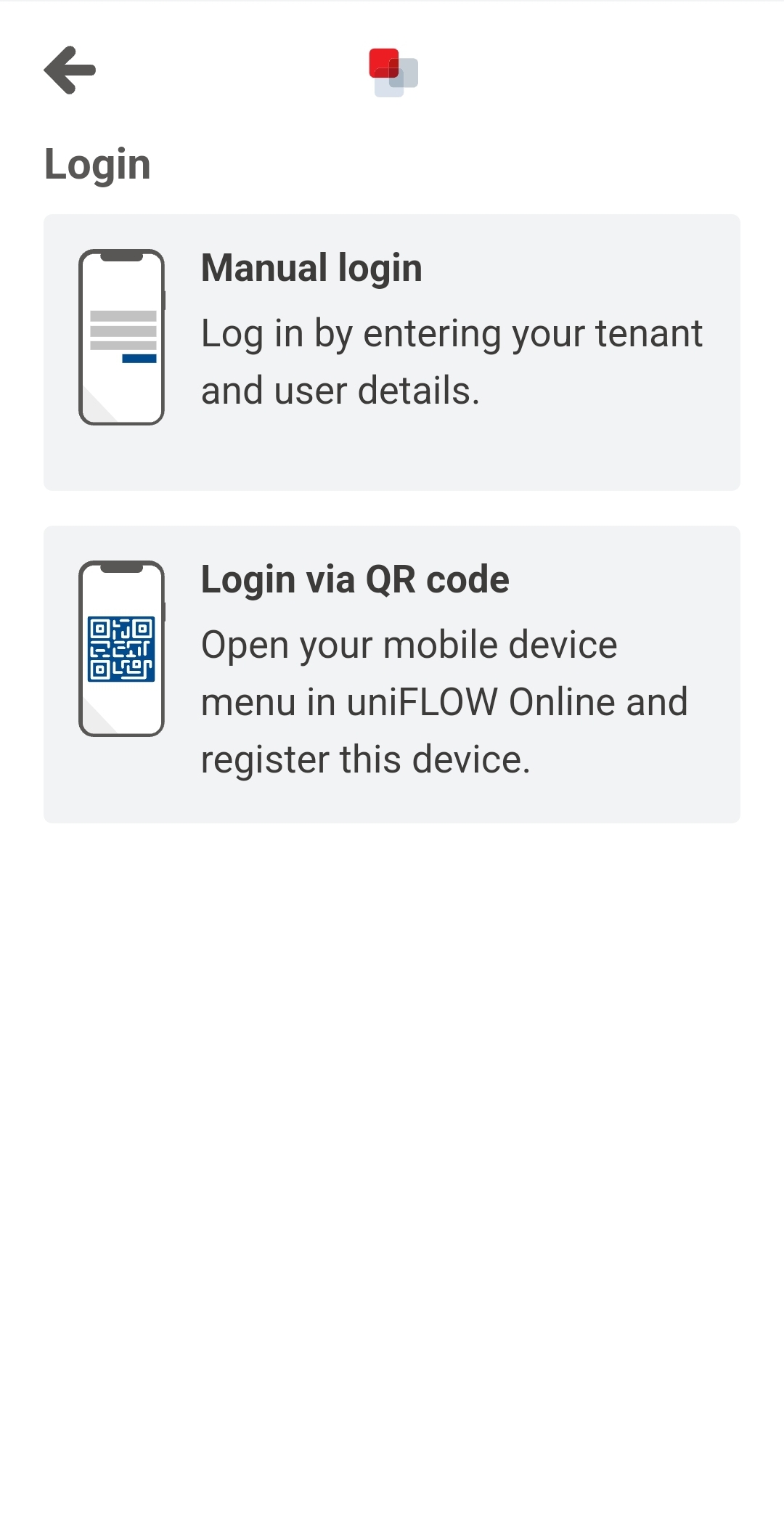
- Select “Manual Login” on the Login screen.
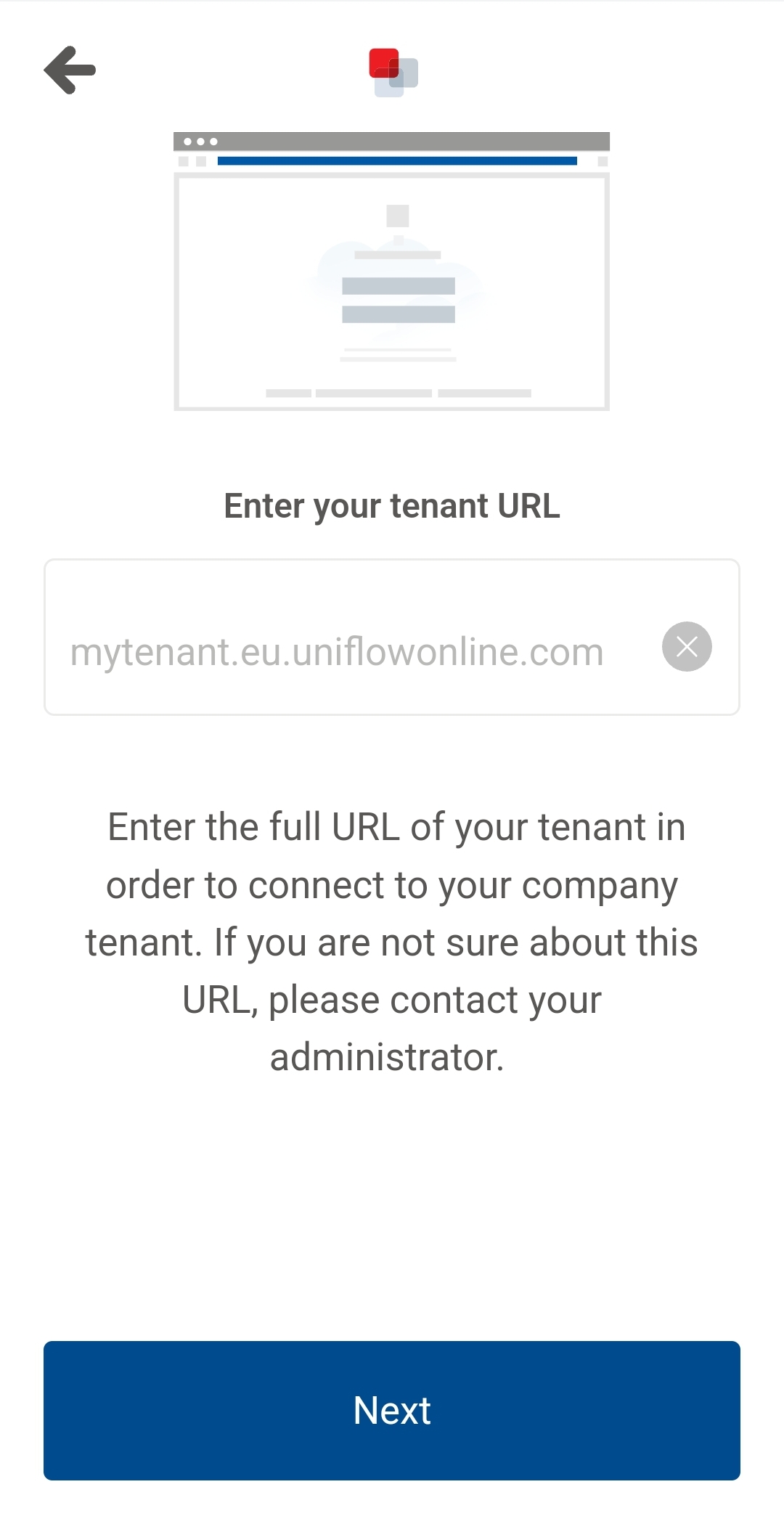
- Type pennwest.us.uniflowonline.com in the field under “Enter your tenant URL” and select “Next”.
- Visit any student printing kiosk on any PennWest campus.
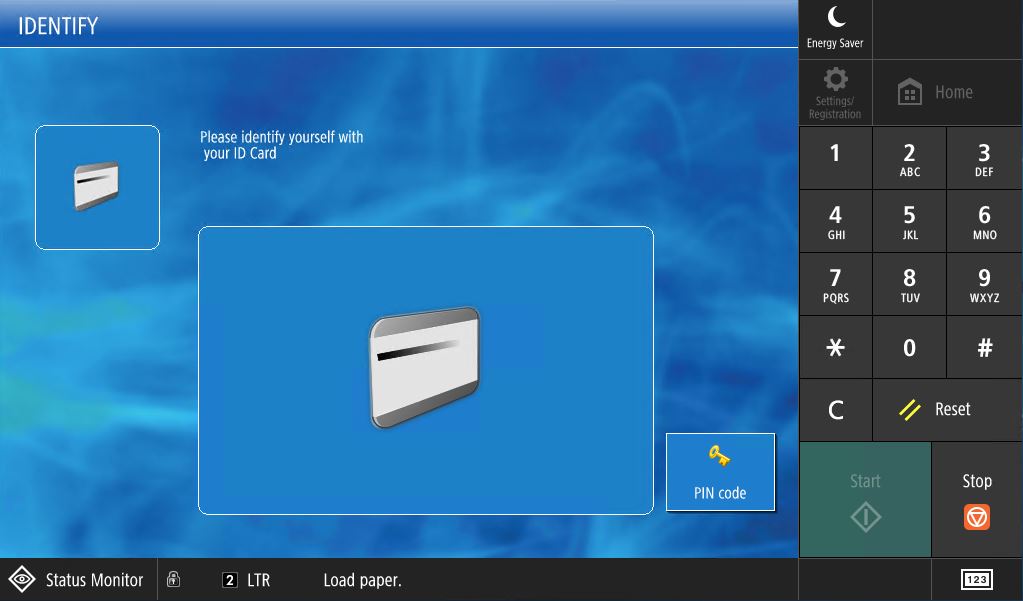
- Swipe your PennWest ID Card or, if you do not have your card, select the PIN option
and enter your PID.
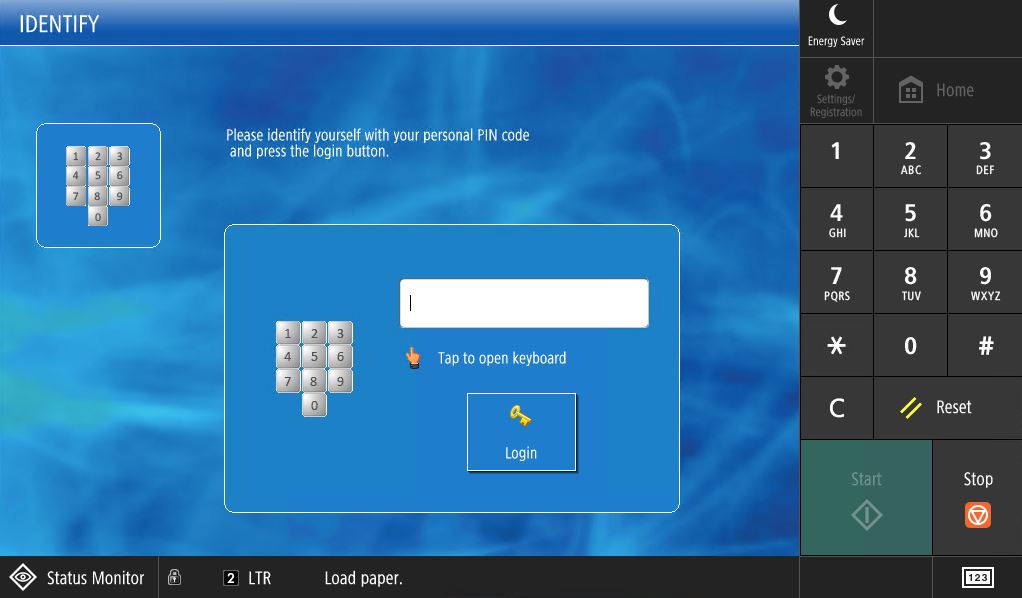
- To log in with your PID you will enter only the number portion, not the letter P.
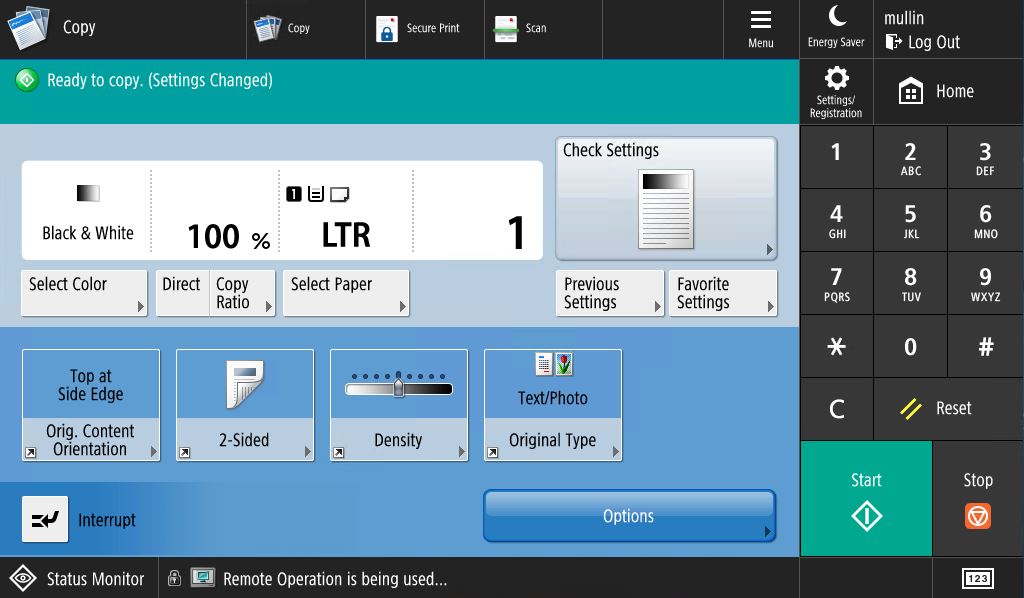
- From the “Home” screen select “Copy” to be taken to the Copy options
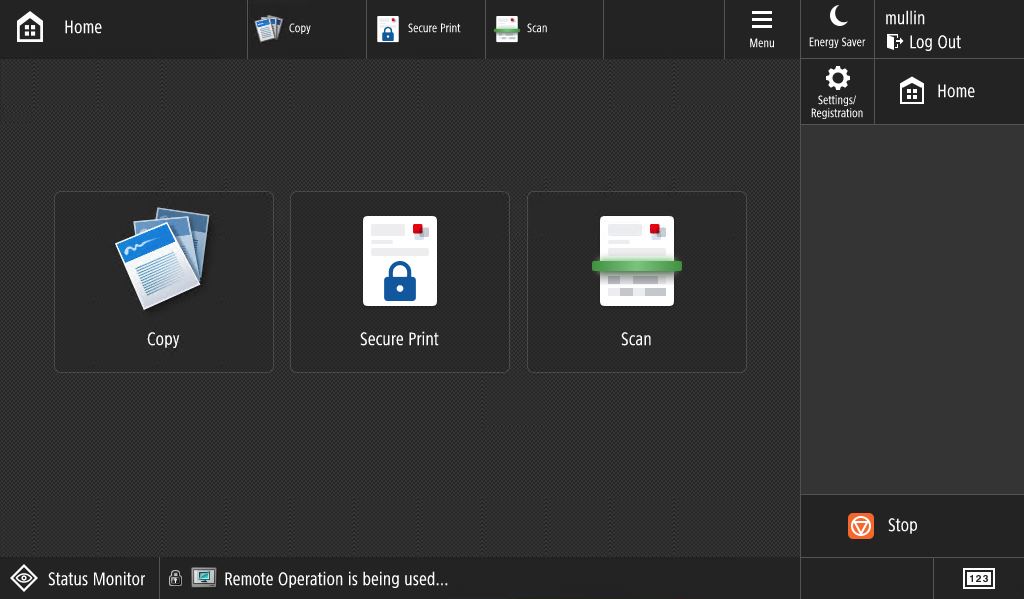
- Insert your document(s) into the sheet feeder
- Make your custom selections Note: Press a number on the number pad to specify the
number of copies
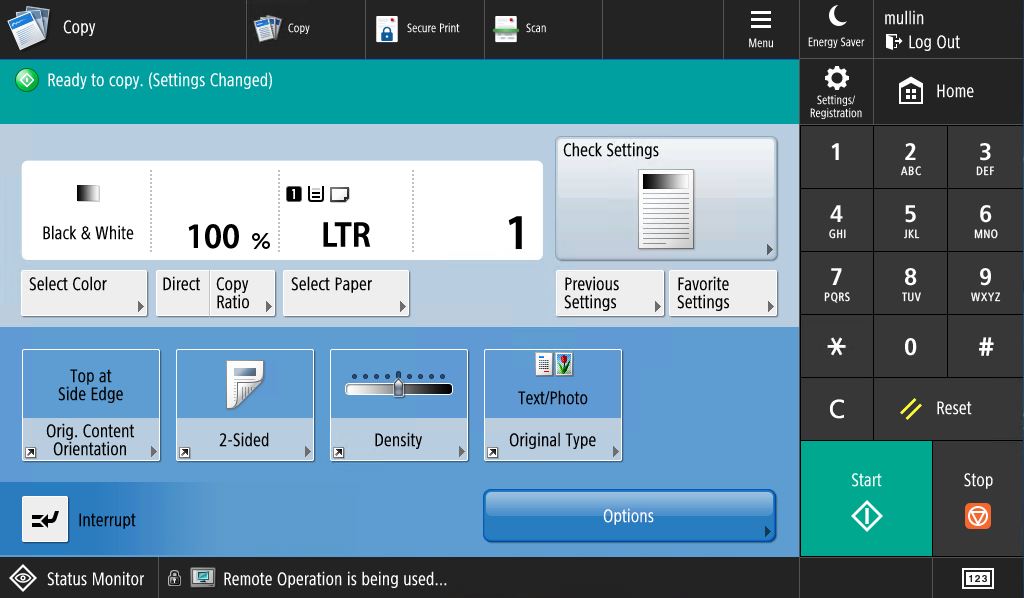
- Select “Start” to copy your document(s)
- Log out of your account when finished. Note: Your account will automatically log out after 2 minutes of inactivity.
- Visit any student printing kiosk on any PennWest campus.
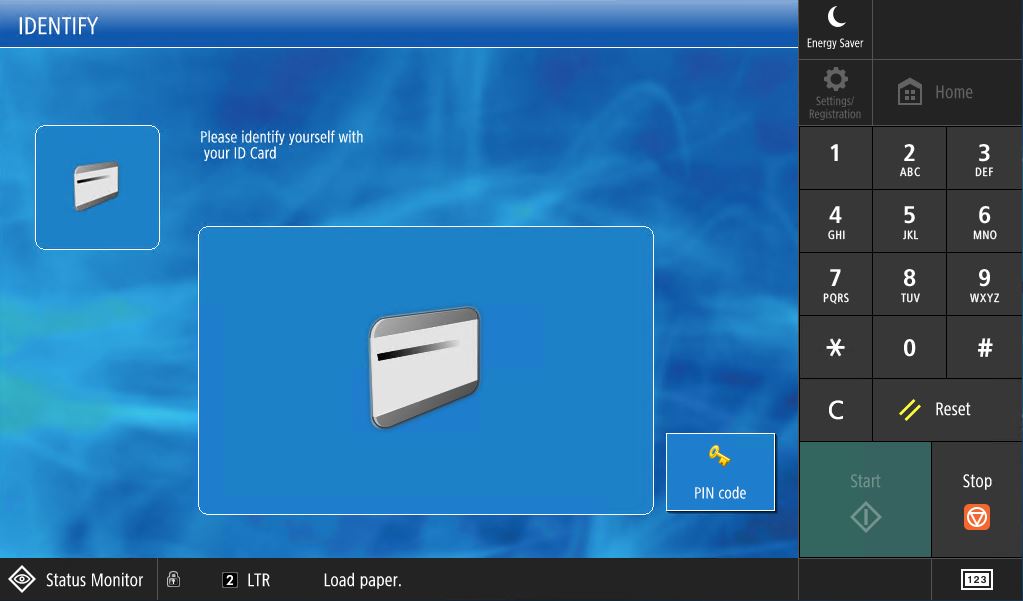
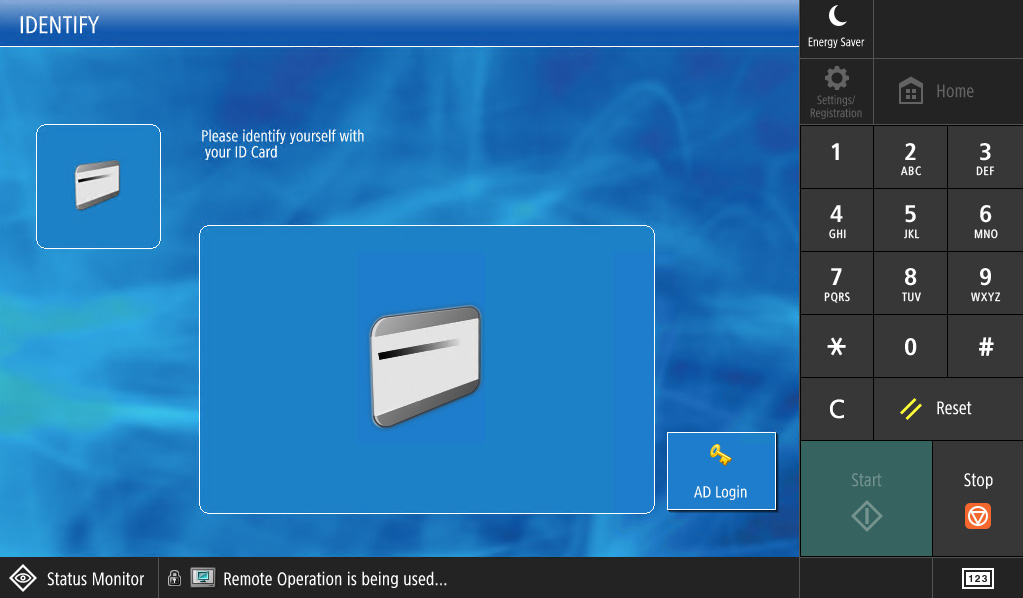
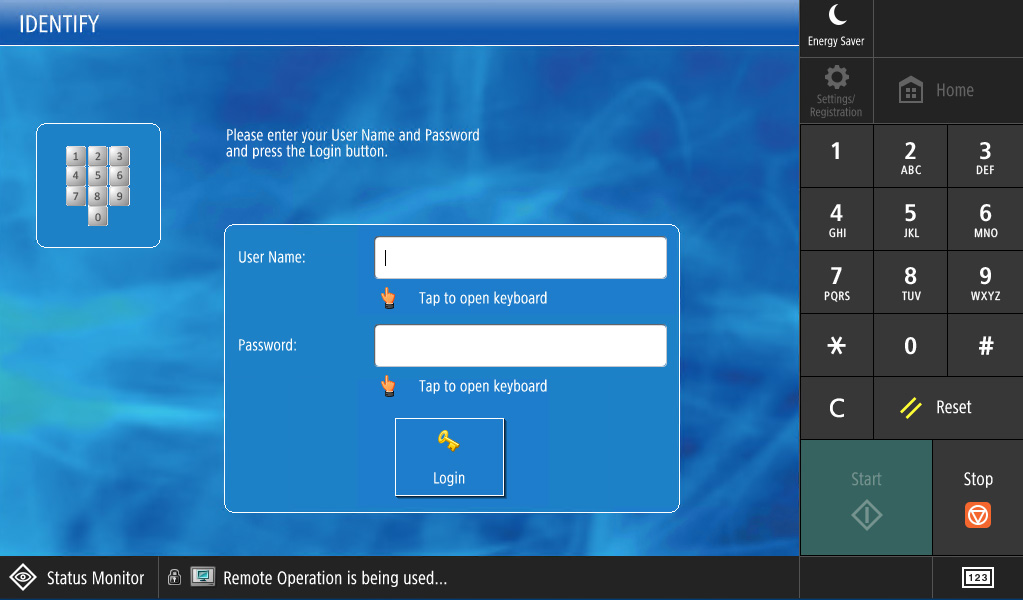
- Swipe your PennWest ID Card or, if you do not have your card, select the PIN option
and enter your PID.
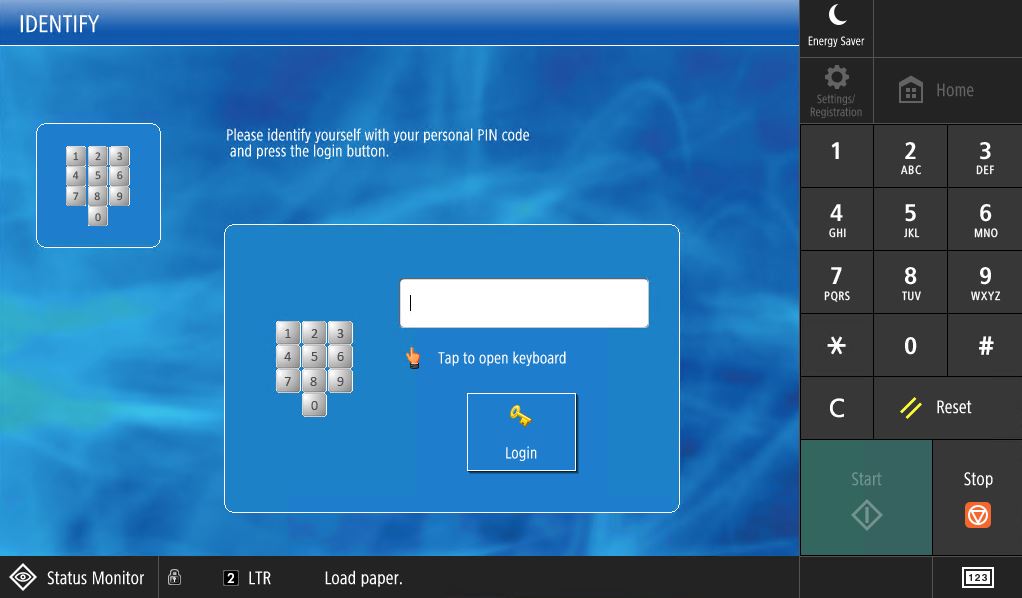
- To log in with your PID you will enter only the number portion, not the letter P.
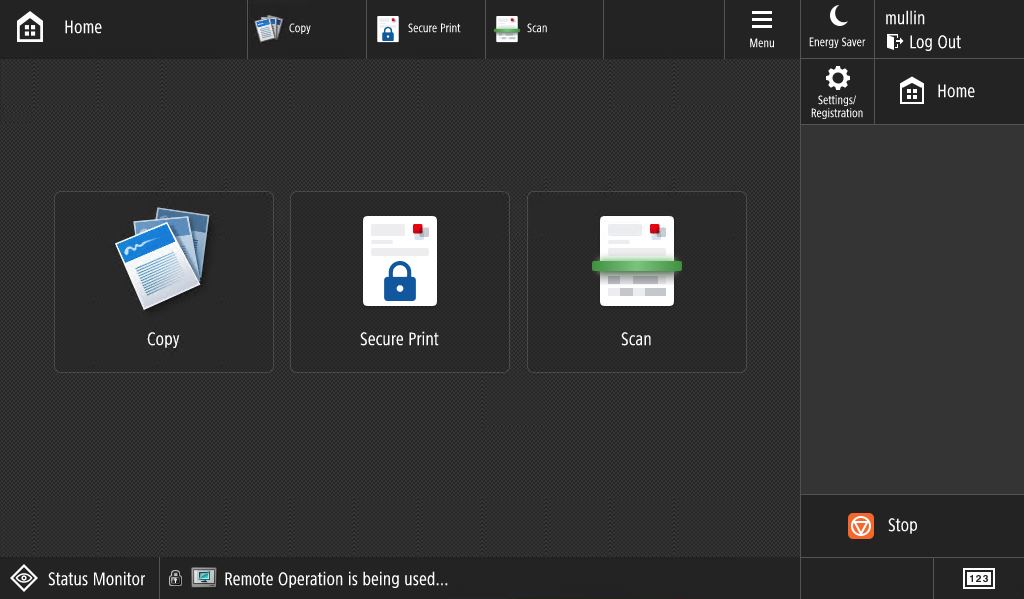
- From the “Home” screen select “Secure Print” to be taken to your Secure Queue
- Insert your document(s) into the sheet feeder
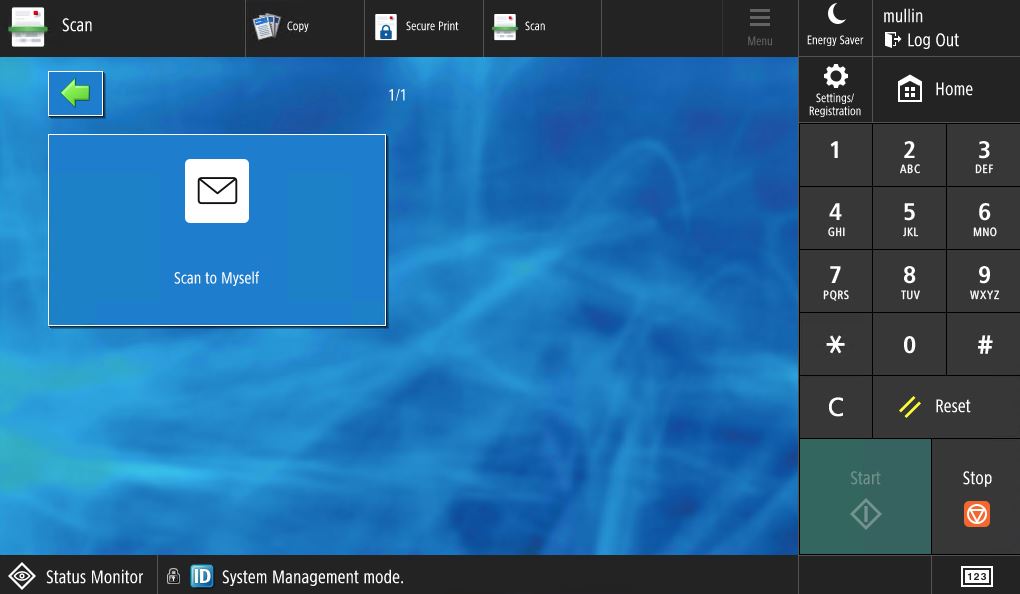
- Select “Scan” from the Home screen
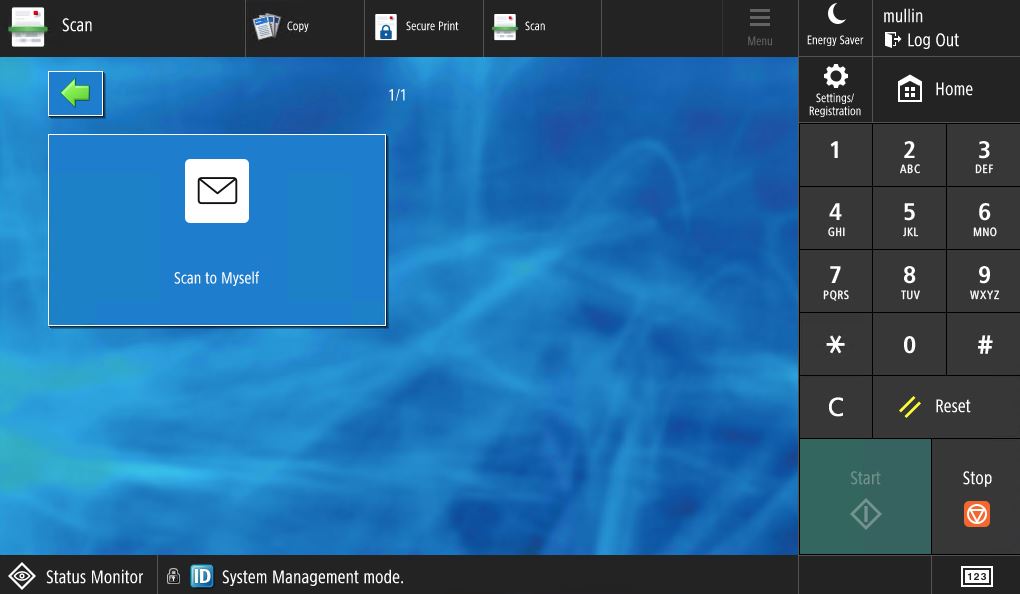
- Select “Scan to Myself” from the Scan screen. Note: You will only be able to scan
to your PennWest email address
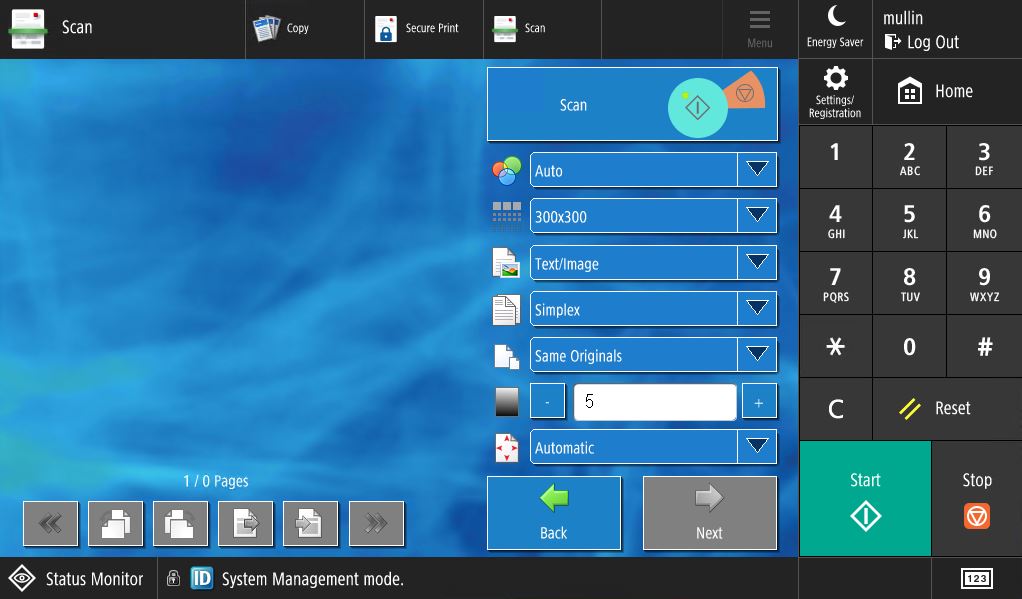
- Make your custom selections
- Select “Scan”
- You will now see a preview of your scan. Make any additional changes needed. Then
select “Next”.
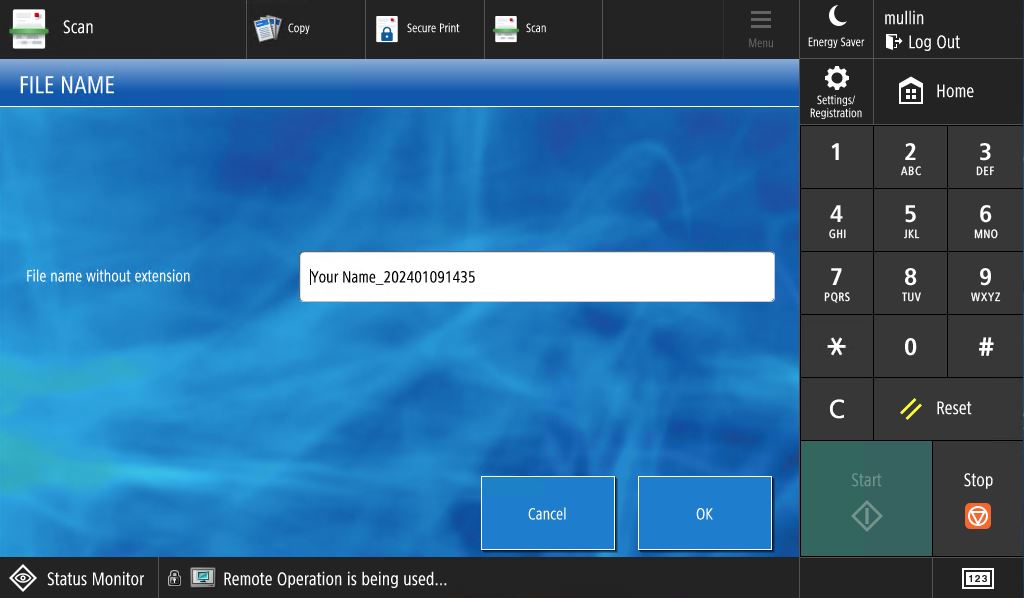
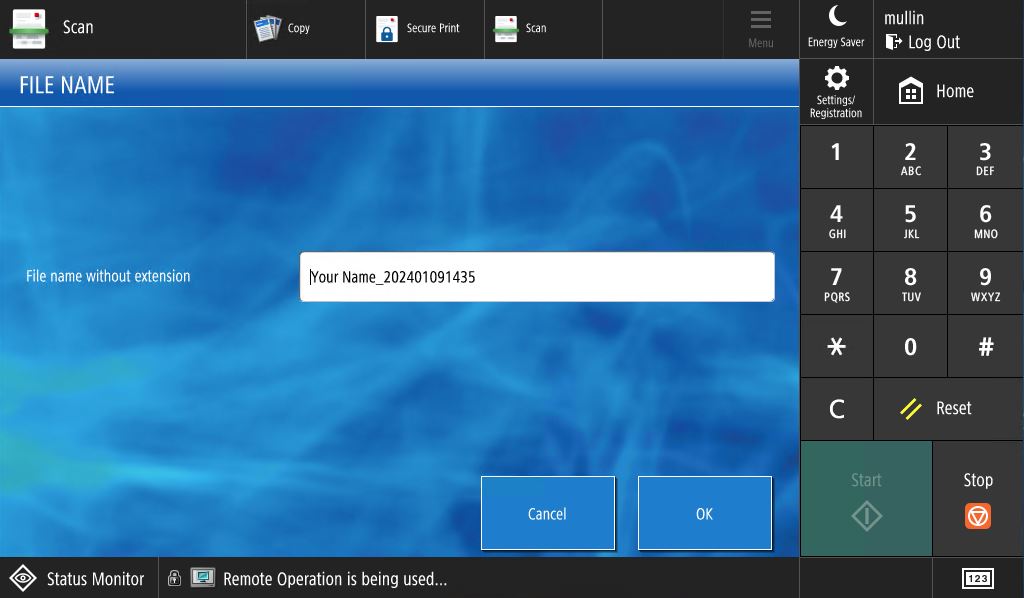
- Name your file or leave as the default.
- Select “OK”.
- Check your PennWest email account for a new message
- From: noreply@pennwest.us.uniflow.com
- Subject: uniFLOW Online: Scan – File Name
- Log out of your account when finished. Note: Your account will automatically log out after 2 minutes of inactivity.
California
| Building | Room |
|---|---|
| Carter Hall HOR | 128 |
| E HOR | 116 |
| Eberly Hall | Lobby |
| Guesman Hall HOR | 132 |
| Johnson HOR | 116 |
| Manderino Library | Lobby |
| Natali Student Center | Outside Bookstore |
| Smith Honors Hall HOR | 134 |
| Vulcan Village HOR | Clubhouse |
Clarion
| Building | Room |
|---|---|
| Becker Hall | 152 |
| Campus View HOR | Lobby |
| Carlson Library | Level 1 |
| Gemmell Student Center | Lobby |
| Reinhard Village HOR | Lobby |
| Suites on Main HOR | Lobby |
Edinboro
| Building | Room |
|---|---|
| Baron-Forness Library | Lobby |
| Highlands 1 | Lobby |
| Highlands 2 | Lobby |
| Highlands 3 | Lobby |
| Highlands 4 | Lobby |
| Highlands 5 | Lobby |
| Highlands 6 | Lobby |
| Highlands 7 | Lobby |
| Pogue Student Center | @nd Floor Student Lounge |
| Ross Hall | Help Desk Lobby |
All PennWest students will receive $7.50 credit on their Printing Allowance at the start of both the Fall and Spring semesters and $3.00 credit if enrolled in Summer classes. Unused allowances do not roll over between semesters.
Cost Per Page
| Student Printing/Copying | Single-Sided |
|---|---|
| Black & White (8.5 x 11) | $0.06 per sheet |
| Color | $0.23 per sheet |
If you exceed your printing allowance, your account will automatically pull additional funds from your “Shop Dollars” account.
To check your Printing Allowance balance, or add more money to your “Shop Dollars” account:
- Log into MyPennWest
- Locate the “Transact eAccounts” card
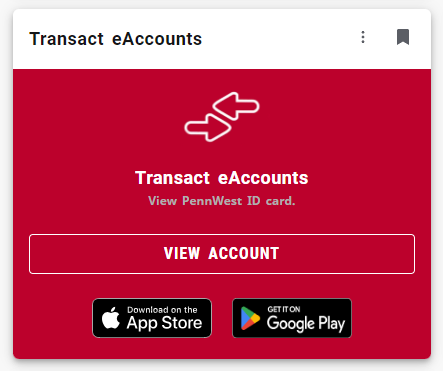
- Select “View Accounts”
- In the left-hand column you will see a listing for your “Printing Allowance” account
and your current balance.
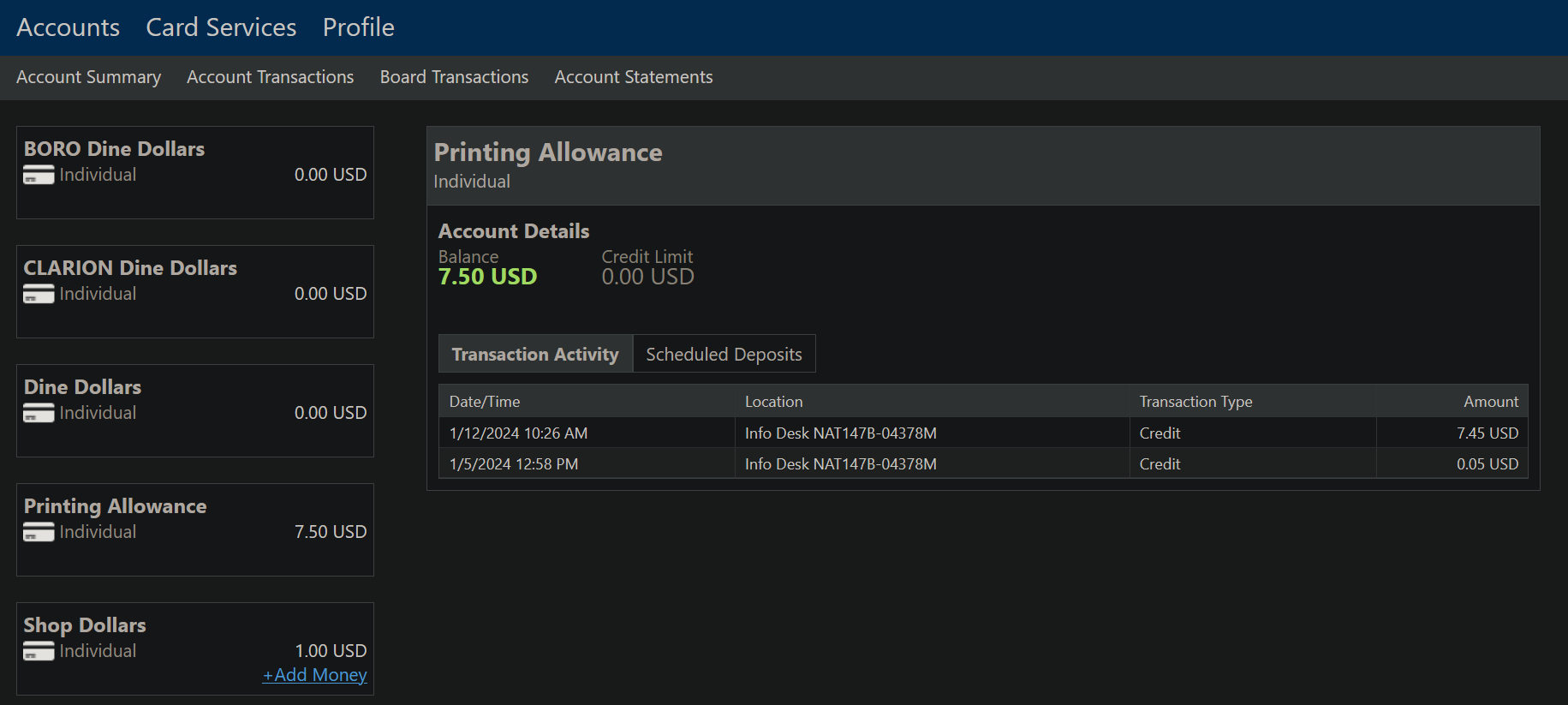
- Select “+Add Money” in the “Shop Dollars” account to add more money for printing and other purposes.