When you sign in to your PennWest account for the first time, you'll need to complete three steps to finish setting up your account:
First Time PennWest Account Setup
Applies to: All Students and Employees
Problems? Email techsupport@pennwest.edu
Step 1: Create Your Password
In your preferred browser, go to our online password reset tool.
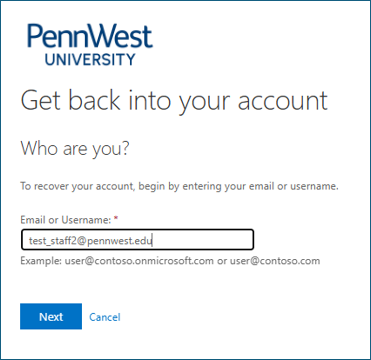
- Enter your full PennWest email address and select Next.
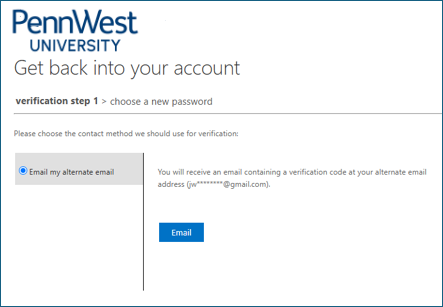
- Select Email to send a verification code to the personal email address where your account information
was sent. If you do not receive the code, check your junk or spam folder.
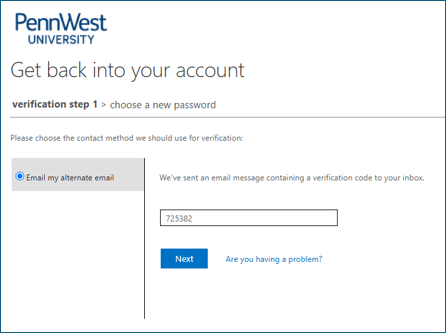
- Enter the verification code and select Next.
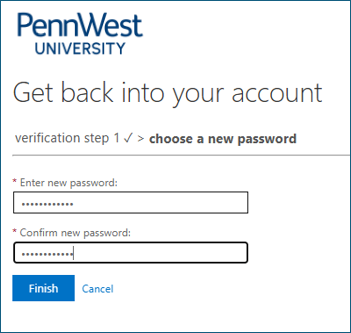
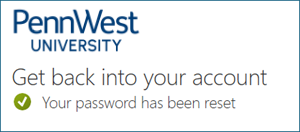
- Enter your new password, confirm it, and select Finish.
Password Requirements
- Minimum of 12 characters
- Cannot match any of your previous 10 passwords
- Must include lowercase letters and at least two of the following:
- Capital letters
- Numbers
- Special characters
- Passwords expire after one year
- Recommended: Use a passphrase made up of several unrelated words and a number or symbol.
Example: CorrectHorseBatteryStaple5
- Recommended: Use a passphrase made up of several unrelated words and a number or symbol.
Important: Update all devices that use your PennWest account with your new password.
Step 2: Set Up Multi-Factor Authentication (MFA)
In your preferred browser, go to the MS Authentication setup website.
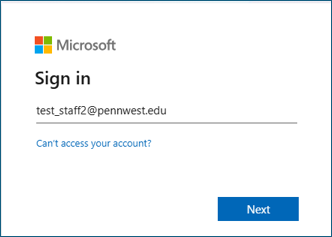
- Enter your full PennWest email address and select Next.
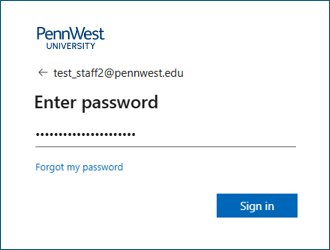
- Enter your PennWest password and select Sign In.
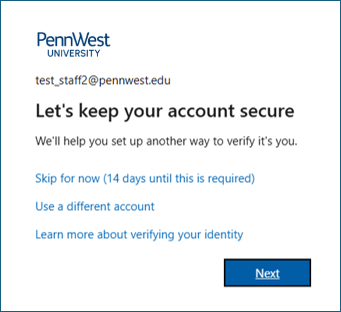
- Select Next to begin setting up Microsoft Authenticator.
- Install and open the Microsoft Authenticator app on your mobile device, then select
Next.
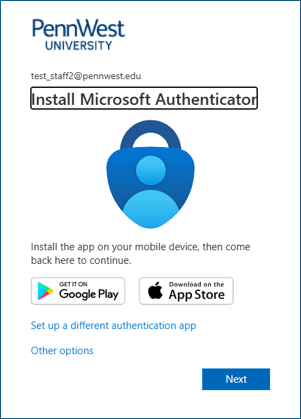
- On your device, in the Microsoft Authenticator app, select Add account > Work or school account.
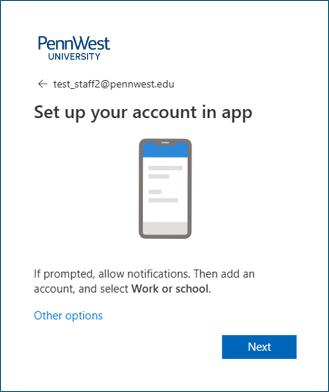
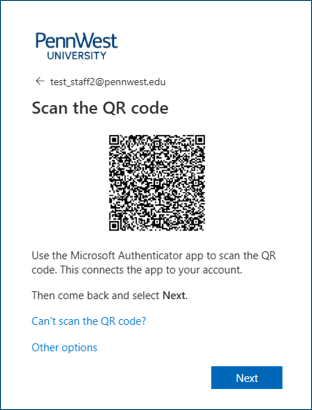
- Use the Microsoft Authenticator app to scan the QR code displayed on your computer
screen.
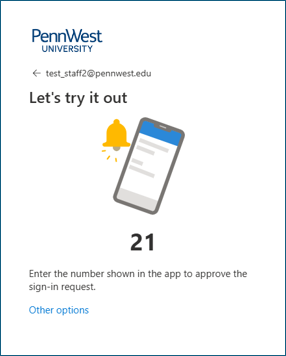
- A notification will be sent to your mobile device. Enter the number displayed on your
computer screen to approve the sign-in request
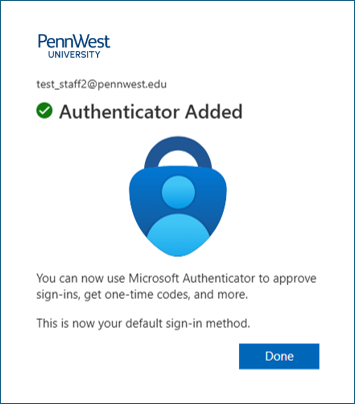
- Select Done.
Part 3: Create a Passkey
A passkey is a secure, passwordless way to log into your university account instead of typing a long password or waiting for a text message security code. Your face, fingerprint or a PIN are examples of a passkey.
You may be prompted to create a passkey during a future sign-in, or set it up now:
Instructions to create a passkey now
Create a passkey during a future sign-in:
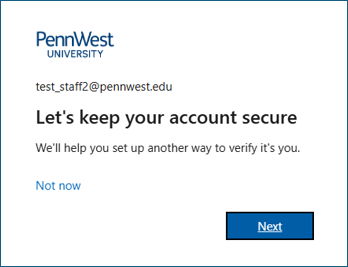
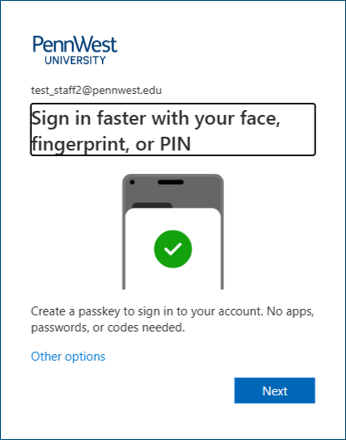
- Select Next for each prompt to begin passkey setup.
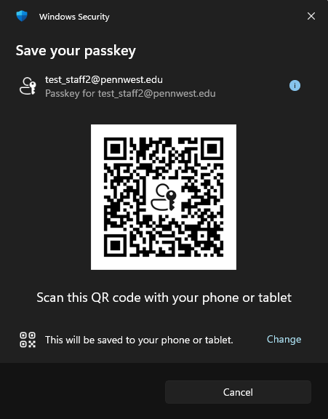
- Scan the QR code using the Microsoft Authenticator app. The appearance of this screen
may vary depending on your device.
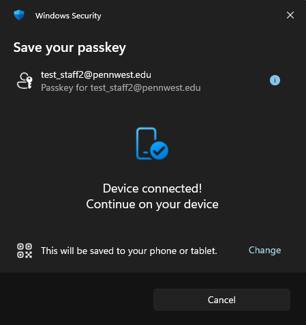
- Your device may display a security notification similar to the one below once your
phone is connected.
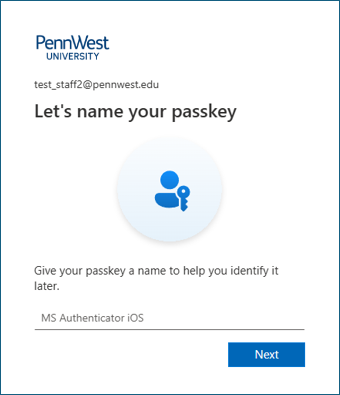
- Enter a name for your passkey (optional) and select Next.
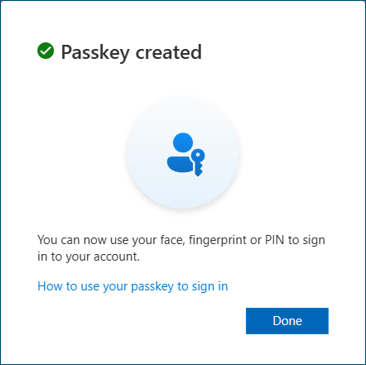
- Your passkey is now ready to use.
Need Help?
Hours and Locations:
IT Services Help Desk is open Monday - Friday between 8:00 am - 4:00 pm EST
California
Natali Student Center, 1st Floor
724-938-5911
Clarion
309 Becht Hall
814-393-2640
Edinboro
Ross Hall Main Lobby
814-732-2111