- Complete Student Accounts Financial Terms and Conditions
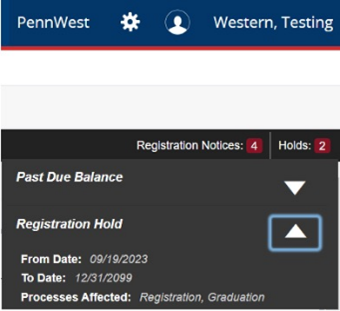
- Review any holds on your student profile in Student Self‑Service
- Note: Effective March 9th, 2026 all undergraduate students and graduate students in Master of Science in Library and Information Science will automatically have an advisor hold
- Meet with your academic advisor
- Note: Take advantage of Advising Day to connect with your advisor, explore campus resources, and make a clear, confident plan for upcoming semesters—this dedicated time is your opportunity to focus on your goals and set yourself up for success.
- Review your Degree Works Audit
- Correct any registration errors
- Note: If you receive a registration error when registering for a course, follow the registration permit instructions to complete a Registration Permit Workflow request.
Get Started with Course Registration
Registering for classes is an important step in planning your academic path. The PennWest Office of the Registrar provides guidance if you have questions about prerequisites, time conflicts, or adding and dropping courses. Our goal is to make the process straightforward, so you can move into the term with confidence.
Log in to the myPennWest portal to browse courses, check meeting times, and build a schedule that fits your goals. All course registration tasks are completed online in Student Self‑Service linked on the Student Quick Access card in the portal.
Important Registration Information
The summer and fall 2026 schedules are available to view via Self-Service beginning on March 16th. All students should follow the pre-registration instructions to successfully create a course schedule and register for classes.
Before You Register
Registration Details
- Course registration tasks are completed online in Student Self-Service through the myPennWest portal.
- Registration opens at 8:00 a.m. according to the schedule shown below.
- Students may revise schedules and register for courses up until the end of Add/Drop at the start of the term.
| TERM | LEVEL | DATES |
|---|---|---|
|
Summer 2026 |
All Current Students |
3/30/26 |
|
Fall 2026 |
Doctoral, Graduate, and students with priority |
3/30/26 |
|
Fall 2026 |
Seniors (90 + earned hours*) |
4/01/26 |
|
Fall 2026 |
Juniors (60-89 earned hours*) |
4/03/26 |
|
Fall 2026 |
Sophomore (30-59 earned hours*) |
4/06/26 |
|
Fall 2026 |
Freshman (0-29 earned hours*) |
4/08/26 |
* Earned hours: Credits completed; does not include credits in progress.
Guide to Instructional Methods
At PennWest, Academic Coordinators build your first-semester schedule based on your major and degree plan. This helps ensure you’re on track from day one and ready for a successful start!
Once you pay your Advanced Tuition Deposit, we begin working on your schedule. Check your PennWest email frequently for a notification that your schedule is done.
Important: Review pre‑registration instructions before scheduling to ensure all requirements—such as holds, advising, and registration eligibility—are complete.
Step‑by‑step Registration Instructions:
- Login to the myPennWest portal
- From the Student Quick Access tile, select Class Registration
- In the self-service portal, select Register for Classes
- Select the Term for Registration
- Select Continue
- If the Course Reference Number (CRN) is known:
- Click Enter CRNs at the top of the box
- Enter the CRN in the box labeled CRN
- Click +Add Another CRN if applicable
- Click Add to Summary
- If the Course Reference Number (CRN) is NOT known, select Find Classes:
- Use the search fields (Subject, Course Number, Course Level) to find classes
- Click Search to see available courses
- Click Add next to courses to add them to your schedule
- Click Search Again to find additional courses
- Once all courses are added to Summary (bottom right of the screen), click Submit to save schedule.
Note: If you do not meet the requirements for any of the selected classes, an error message will display.
New Transfer Students
- After the Office of the Registrar evaluates your transfer credits, you’ll work with your academic department and the Student Success Center to build your class schedule.
- To get started, please have your most recent official transcripts sent directly from your previous institution to admissions@pennwest.edu.
Current Students Transferring Coursework
- If you are bringing in coursework from another institution, request that your official transcripts be sent directly from the sending institution to registrar@pennwest.edu.
- If you have questions about the transfer credit process or how credits apply to your program, contact registrar@pennwest.edu.
Graduate students are able to build their own class schedule.
- Visit Graduate Next Steps, to complete any outstanding items.
- Connect with your advisor to discuss your course schedule; advisor details can be found in Student Self-Service accessed via your myPennWest portal. If one has not been provided, please view our program pages and click on the “Meet our Faculty” link to connect with one of them.
- On your eligible registration date, follow the same registration instructions provided above under "Current Students" to schedule courses.
- Step-by-Step Instructions (pdf)
Various flags may result in a hold preventing course registration. Students can check for holds in Student Self-Service by selecting Registration and then Prepare for Registration. Contact the department that issued the hold to resolve before scheduling.
Note: All undergraduate and graduate students in the Master of Science in Library Science program have an advising hold on their account; you must reach out to your academic advisor for removal of the hold.
PennWest course terms vary in duration and may overlap with partial terms. Always refer to the Academic Calendar for the last day to Add/Drop for a given term.
Add/Drop tasks are completed online in Student Self-Service through the myPennWest portal.
Waitlists*
- When class occupancy is full, eligible students can select the waitlist option to enroll if a seat becomes available.
- As enrolled students drop a class, eligible waitlisted students are moved up in the queue for vacated seats.
- There is no limit on the number of classes students may waitlist.
- Students should check their university email frequently for notifications when a seat becomes available.
- Once notified, students must access Student Self-Service and register within 24 hours before automatic removal from the waitlist.
*Note: Not every class will offer a waitlist. The department offering the class determines the waitlist option.
- If there is space on the waitlist, click "Add" to add the class to your summary.
- From the action menu for that class, in the summary, select "Waitlist."
- Click "Submit." You will see the class now says waitlisted.
Note: You may not waitlist a class if you are enrolled in another section of that class.
- In the "Register for Classes" window, use the action drop down box in the summary to change the course from "Waitlisted" to "Registered."
- Click "Submit."
The process to change your declared major will depend on if you are a newly admitted student, current student or graduate student. You can learn how to make a change, what campus partners are available to assist you, and other important considerations on our Changing Your Major web page.
Students can withdraw from a course after the Add/Drop period. The deadline for withdrawing from a course can be found on the Academic Calendar for the term.
- Withdrawn courses remain on your official transcript with a “W” as the grade. (not calculated in GPA, but will show as attempted hours).
- Withdrawing may affect current and/or future financial aid. Contact the Financial Aid and Student Accounts offices for questions regarding impact on aid and charges.
- Contact additional departments if they are relevant to your student account: Athletics, Housing, International Services, Veteran's Benefits.
- Log in to myPennWest portal and select Student Self-Service.
- Select Registration then Register for Courses.
- Choose the term.
- In the Schedule Summary window at the bottom right, select “withdraw” from the option menu for the course(s) you wish to withdraw from.
- Click “Submit.”
- Log in to myPennWest portal and select Student Self-Service.
- Select Registration then Register for Courses.
- Choose the term.
- In the Schedule Summary window at the bottom right, select “withdraw” from the option menu next to each course for the term.
- Click “Submit.”
- Log in to myPennWest portal and select Student Self-Service. Click on your Profile.
- Select Registration then Register for Courses.
- Choose the term.
- In the Schedule Summary window at the bottom right, select “withdraw” from the dropdown next to each course.
- Click “Submit.”
- Please email registrar@pennwest.edu indicating that you wish to withdraw from the university completely.
Be sure to repeat the steps above for any FUTURE terms you may be registered for.
Additional Departments to contact regarding your withdrawal:
Note: If relevant to your student account, please contact the specific departments below:
- Athletics
- Housing
- International Education
- Military and Veteran Services
Frequently Asked Questions
Your academic advisor will guide you in determining what courses meet your program needs. Check the Degree Works in the myPennWest portal for courses you need to take in your current program.
Degree Works is located under the "myApps" category within the portal.
If you're experiencing technical issues with the registration portal, try the following:
- Clear your browser cache and cookies.
- Try accessing the portal from a different browser or device.
- Ensure you're using your official PennWest email and password.
- If the problem persists, submit a service request to the IT Services Help Desk.
Contact us at registrar@pennwest.edu.
Possible login errors
1. Invalid username/password; login denied.
This error occurs when a student is either:
- logged into my.pennwest.edu on multiple devices,
- or, has multiple tabs open for an extended period of time
Please take the following steps:
- Close your browser completely
- Launch your browser again
- Log into your myPennWest portal
- Access the registration link
- Still not working? Clear your cache and cookies (everything) and repeat steps if necessary
2. Administrative staff are reviewing your registration record.
This error happens when a PennWest faculty or staff member is in your account at the same time you are trying to access your registration screens. Once the PennWest employee exits your account and a few minutes of inactivity pass – you will be able to access your account again. Thank you for your patience!
3. Academic standing prohibits registration.
Academic Dismissal or Suspension status prevents registering for future term, contact Registrar@pennwest.edu for assistance.
4. Student status prevents registration if student is not active for the term.
Please contact registrar@pennwest.edu for assistance.
If a registration error occurs during course enrollment, complete the Registration Permit Workflow request.
For a list of registration error messages, refer to "Course Registration Error Definitions" on the Registrar Resources page.
Still have questions?
Current students: for assistance with registration or other questions for Office of the Registrar, please use the Raise Your Hand feature in the Starfish platform to ask your question. Starfish can also be accessed through your myPennWest portal.