Get Started with Course Registration

Registering for classes is completed through Student Self-Service in myPennWest where you can browse courses, review meeting times, and build a schedule that supports your academic goals. If you have questions about prerequisites, time conflicts, or adding and dropping courses, the Office of the Registrar is here to help.

Log in to the myPennWest portal and complete all registration tasks online.

What do you need help with?

Registration dates
Registration processes
Registration support
Frequently asked questions

When does registration begin?

The Winter 2026 and Spring 2027 course schedules will be visible in Self-Service beginning October 12.

Registration for Winter 2026 and Spring 2027 terms takes place October 26 - November 4, 2026. Your eligible registration date depends on the number of earned hours (credits completed).

  • Registration opens at 8:00 a.m. on the dates below. 
  • Students may revise schedules and register for courses up until the end of Add/Drop at the start of the term. 
TERM LEVEL DATES

Winter 2026

All Current Students

10/26/26

Spring 2027

Doctoral, Graduate, and students with priority

10/26/26

Spring 2027

Seniors (90 + earned hours*)

10/28/26

Spring 2027

Juniors (60-89 earned hours*)

10/30/26

Spring 2027

Sophomore (30-59 earned hours*)

11/2/26

Spring 2027

Freshman (0-29 earned hours*)

11/4/26

* Earned hours = credits completed; credits in progress are not included. 
Before you can register:

  • All undergraduate students automatically have an advisor hold and must reach out to their academic advisor for removal of the hold.
  • Graduate students in Master of Science in Library and Information Science automatically have an advisor hold and  must reach out to their academic advisor for removal of the hold.

Before you can register, you must accept the Financial Terms and Conditions. 

  • Sign in to your myPennWest portal using your PennWest username and password.
  • Click on the tasks/calendar icon in the top-right of your myPennWest dashboard to display the task panel. 
  • Locate the Accept Financial Terms and Conditions link within the tasks tab.
    • This agreement is required before you can view your course schedule if you did not self-register.
    • This agreement is also required before you can register for classes.
  • Click the Accept Financial Terms and Conditions link to begin the agreement.
  • Read and review the full Financial Terms and Conditions document.
    • Scroll through the agreement and carefully review all terms.
  • Click the blue Accept button at the bottom right of the document.
  • You will receive confirmation that the Financial Terms and Conditions task has been successfully completed.
  • Need help? If you cannot access or complete the agreement, contact the Office of Student Accounts at: studentaccounts@pennwest.edu 

Watch a Video Demonstration

Go to Student Accounts

Before planning or registering for classes, confirm that no holds are blocking your registration.  Holds may result from unpaid balances, missing documents, or advising requirements and must be resolved before registration.

Remember: All undergraduate students and graduate students in the Master of Science in Library Science program automatically have an advising hold and must reach out to their academic advisor for removal of the hold.

How to check:

  • Log in to the myPennWest portal and go to:
    Student Self‑Service > Student Records > Student Advising Profile > View Holds
  • If a hold appears, contact the office that issued it for assistance.

Helpful links:

Review your Degree Works audit to understand which courses you still need to complete your degree. Required courses appear as active links in your student worksheet. Selecting a course link allows you to view descriptions, prerequisites, attributes, and available sections.

Reviewing Degree Works before advising will help you make informed registration decisions.

Learn About Degree Works

Meet with your academic advisor to confirm your course plan and discuss the best sequence for completing your degree.

Important:

  • All undergraduate students and graduate students in the M.S. in Library and Information Science program must have their advisor remove the automatic registration hold.
  • Use Advising Day to connect with your advisor, review available resources, and plan your next semesters with confidence.

Advising Meeting Guide

Advisor details are available in Student Self‑Service through the Student Quick Access tile in the myPennWest portal. Your advisor’s name and contact information appear in your Student Profile.

Contact your academic department for assistance. Department contact information is available in the University Directory. 


Approximately two weeks before registration opens, students can view their assigned Time Ticket in Student Self‑Service (Registration > Prepare for Registration)

What is a time ticket?

Your Time Ticket shows the specific date and time you can begin registering for classes. Registration windows are assigned based on your class status (Doctoral, Graduate, Senior, Junior, Sophomore, Freshman), which is determined by earned credits. In‑progress courses are not included.

Don't see a Time Ticket?

Please email registrar@pennwest.edu for assistance. 

Registration Processes

Review PennWest Instructional Methods

At PennWest, Academic Coordinators build your first-semester schedule based on your major and degree plan. This helps ensure you’re on track from day one and ready for a successful start!

Once you pay your Advanced Tuition Deposit, we begin working on your schedule. Check your PennWest email frequently for a notification that your schedule is done. 

Your First Schedule

Important: Review pre‑registration instructions before scheduling to ensure all requirements—such as holds, advising, and registration eligibility—are complete.

Step‑by‑step Registration Instructions:
  • Login to the myPennWest portal
  • From the Student Quick Access tile, select Class Registration
  • In the self-service portal, select Register for Classes
  • Select the Term for Registration
  • Select Continue
  • If the Course Reference Number (CRN) is known:
    • Click Enter CRNs at the top of the box
    • Enter the CRN in the box labeled CRN
    • Click +Add Another CRN if applicable
    • Click Add to Summary
  • If the Course Reference Number (CRN) is NOT known, select Find Classes:
    • Use the search fields (Subject, Course Number, Course Level) to find classes
    • Click Search to see available courses
    • Click Add next to courses to add them to your schedule
    • Click Search Again to find additional courses
  • Once all courses are added to Summary (bottom right of the screen), click Submit to save schedule.

Note: If you do not meet the requirements for any of the selected classes, an error message will display. 

Course Search

Step-by-Step Instructions (pdf)

Student Training Videos

New Transfer Students
  • After the Office of the Registrar evaluates your transfer credits, you’ll work with your academic department and the Student Success Center to build your class schedule.
  • To get started, please have your most recent official transcripts sent directly from your previous institution to admissions@pennwest.edu.
Current Students Transferring Coursework
  • If you are bringing in coursework from another institution, request that your official transcripts be sent directly from the sending institution to registrar@pennwest.edu.
  • If you have questions about the transfer credit process or how credits apply to your program, contact registrar@pennwest.edu. 


Transferring Undergraduate Credits

Transferring Graduate Credits

Graduate students are able to build their own class schedule.

  • Visit Graduate Next Steps, to complete any outstanding items.
  • Connect with your advisor to discuss your course schedule; advisor details can be found in Student Self-Service accessed via your myPennWest portal. If one has not been provided, please view our program pages and click on the “Meet our Faculty” link to connect with one of them.
  • On your eligible registration date, follow the same registration instructions provided above under "Current Students" to schedule courses.  

Step-by-Step Instructions (pdf)

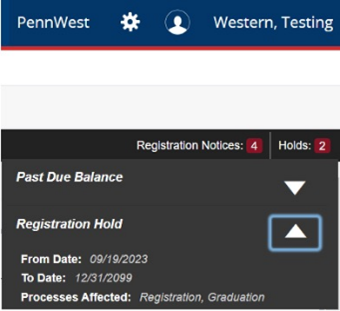
Various flags may result in a hold preventing course registration. Students can check for holds in Student Self-Service by selecting Registration and then Prepare for Registration. Contact the department that issued the hold to resolve before scheduling.

Note: All undergraduate and graduate students in the Master of Science in Library Science program have an advising hold on their account; you must reach out to your academic advisor for removal of the hold. 

Resolving Registration Holds

self-service registration hold notification

You may see a registration error if you do not meet requirements or restrictions for a particular course. Most errors require an override for the course.

Complete a Registration Error Permit Request 

Registration Error Permit Request How To Guide (pdf)

PennWest course terms vary in duration and may overlap with partial terms. Always refer to the Academic Calendar for the last day to Add/Drop for a given term.  

Add/Drop tasks are completed online in Student Self-Service through the myPennWest portal.

Waitlists*
  • When class occupancy is full, eligible students can select the waitlist option to enroll if a seat becomes available. 
  • As enrolled students drop a class, eligible waitlisted students are moved up in the queue for vacated seats.
  • There is no limit on the number of classes students may waitlist.
  • Students should check their university email frequently for notifications when a seat becomes available. 
  • Once notified, students must access Student Self-Service and register within 24 hours before automatic removal from the waitlist. 

*Note: Not every class will offer a waitlist. The department offering the class determines the waitlist option. 

  • If there is space on the waitlist, click "Add" to add the class to your summary.
  • From the action menu for that class, in the summary, select "Waitlist."
  • Click "Submit." You will see the class now says waitlisted.

Waitlist Guide (pdf) (video)

Note: You may not waitlist a class if you are enrolled in another section of that class.

  • In the "Register for Classes" window, use the action drop down box in the summary to change the course from "Waitlisted" to "Registered."
  • Click "Submit."

If a course is at capacity, students may continue to register and join waitlists  through the last day of  registration.  Capacity permits will not be issued during this period.

Spring 2027 Waitlist Timeline
  • November 11-18: Academic departments review waitlists, assess student needs, and prioritize requests. During this review period, the waitlist is not automated.
  • November 18-December 18: Waitlists remain open and become automated. If a seat becomes available, you'll receive a notification and must respond by the deadline provided.
  • December 18: Waitlists close and final notifications are sent. Students can no longer join a waitlist after this date.
  • December 21: Waitlists are cleared. After this date, capacity permits may be issued when appropriate.

Tip: Check your PennWest email regularly for waitlist notifications and enrollment deadlines.

The process to change your declared major will depend on if you are a newly admitted student, current student or graduate student. You can learn how to make a change, what campus partners are available to assist you, and other important considerations on our Changing Your Major web page.

New/Incoming Students

Current Students

Students can withdraw from a course after the Add/Drop period. The deadline for withdrawing from a course can be found on the Academic Calendar for the term. 

  • Withdrawn courses remain on your official transcript with a “W” as the grade. (not calculated in GPA, but will show as attempted hours).
  • Withdrawing may affect current and/or future financial aid. Contact the Financial Aid and Student Accounts offices for questions regarding impact on aid and charges. 
  • Contact additional departments if they are relevant to your student account: Athletics, Housing, International Services, Veteran's Benefits.

  1. Log in to myPennWest portal and select Student Self-Service.
  2. Select Registration then Register for Courses.
  3. Choose the term.
  4. In the Schedule Summary window at the bottom right, select “withdraw” from the option menu for the course(s) you wish to withdraw from.
  5. Click “Submit.”

  1. Log in to myPennWest portal and select Student Self-Service.
  2. Select Registration then Register for Courses.
  3. Choose the term.
  4. In the Schedule Summary window at the bottom right, select “withdraw” from the option menu next to each course for the term.
  5. Click “Submit.”

  1. Log in to myPennWest portal and select Student Self-Service. Click on your Profile.
  2. Select Registration then Register for Courses.
  3. Choose the term.
  4. In the Schedule Summary window at the bottom right, select “withdraw” from the dropdown next to each course.
  5. Click “Submit.”
  6. Please email registrar@pennwest.edu indicating that you wish to withdraw from the university completely. 

Be sure to repeat the steps above for any FUTURE terms you may be registered for.

Additional Departments to contact regarding your withdrawal: 

Note: If relevant to your student account, please contact the specific departments below:  

  • Athletics
  • Housing
  • International Education
  • Military and Veteran Services

Refund Policy - University Charges

Fall and Spring

  • Undergraduate: Students are permitted to register for up to 18 credit hours.*
  • Graduate: Students are permitted to register for up to 15 credit hours.* 
  • Students on Academic Probation: Students on  academic probation, may register for no more than 14 credit hours.* 

Summer

  • Graduate and Undergraduate: Students are permitted to register for up to 18 credit hours.*

Winter

  • Graduate and Undergraduate:  Students are permitted to register for up to 8 credit hours.* 
*Note:
  • To register for more than the permitted credit hours in a semester, please complete the Credit Overload Application and obtain the necessary signatures.  
  • Taking more than maximum credits will result in additional tuition & fees for the term.

Prior Learning Credit can be earned through nationally standardized exams. You can also earn credit with documentation of learning acquired through training, the military, or your workplace. Learn more about the type of credit accepted and how to apply these Prior Learning Credits to gain a head start at PennWest.

Learn more about Prior Learning Credits

A prerequisite is a course or a test (such as the Math Placement Test) that you need to pass before you can register for another course. 

Students can check course prerequisites in the Course Catalog for the desired term and course.

Can I be waived from a prerequisite?

Yes, in some cases. If you think you may be eligible to have a prerequisite waived, you should reach out to your advisor.  

What is the difference between a Prerequisite and a Corequisite?

  • Prerequisites are courses that you must take before you can register for a corresponding course
  • Corequisites are courses that you MUST take during the same term as a corresponding course. (i.e. you cannot register for one without the other).

Am I allowed to register in the future term course if I am currently enrolled in the prerequisite course?

Yes, the system assumes that you will pass the prerequisite course in which you are currently enrolled. You may also register for prerequisite courses in advance.

However, if you do not pass the prerequisite course, your department may decide to drop you from the future course. You will be contacted at the end of the term if adjustments are needed for a future term schedule if you do not meet a pre-requisite requirement.

Frequently Asked Questions

Your academic advisor will guide you in determining what courses meet your program needs. Check Degree Works in the myPennWest portal for courses you need to take in your current program. 

Degree Works is located under the "myApps" category within the portal. 

If you're experiencing technical issues with the registration portal, try the following: 

  • Clear your browser cache and cookies.
  • Try accessing the portal from a different browser or device.
  • Ensure you're using your official PennWest email and password. 
  • If the problem persists, submit a service request to the IT Services Help Desk.

Contact us at registrar@pennwest.edu.

Possible login errors

1. Invalid username/password; login denied.

This error occurs when a student is either:

  • logged into my.pennwest.edu on multiple devices,
  • or, has multiple tabs open for an extended period of time

Please take the following steps:

  • Close your browser completely
  • Launch your browser again
  • Log into your myPennWest portal
  • Access the registration link
  • Still not working? Clear your cache and cookies (everything) and repeat steps if necessary

2. Administrative staff are reviewing your registration record.

This error happens when a PennWest faculty or staff member is in your account at the same time you are trying to access your registration screens. Once the PennWest employee exits your account and a few minutes of inactivity pass – you will be able to access your account again. Thank you for your patience!

3. Academic standing prohibits registration.

Academic Dismissal or Suspension status prevents registering for future term, contact Registrar@pennwest.edu for assistance. 

4. Student status prevents registration if student is not active for the term.

Please contact registrar@pennwest.edu for assistance.

Approximately two weeks before registration opens, students can view their assigned Time Ticket in Student Self‑Service (Registration > Prepare for Registration)

Your Time Ticket determines when you are eligible to register for classes.

FAQs

A Time Ticket shows the specific date and time you can begin registering for classes. Registration windows are assigned based on your class status (Doctoral, Graduate, Senior, Junior, Sophomore, Freshman), which is determined by earned credits. In‑progress courses are not included.

Time tickets are based on earned credits: 

  • Doctoral: 0-999 
  • Graduate: 0-999 
  • Senior: 90 +
  • Junior: 60-89 
  • Sophomore: 30-59 
  • Freshman: 0-29

Please email registrar@pennwest.edu for assistance. 

  • Degree Works includes in‑progress courses when displaying academic standing.
  • Prepare for Registration shows your program classification, which includes in‑progress courses and is used to determine eligibility for courses restricted by class level.
  • Time Tickets, however, are based only on earned credits.

Still have questions? 

Current students: for assistance with registration or other questions for Office of the Registrar, please use the Raise Your Hand feature in the Starfish platform to ask your question. Starfish can also be accessed through your myPennWest portal.

Raise Your Hand